1. Overview
.png)
Arca is an open, verifiable AI data platform, allowing contributors to submit private AI workflow data to earn rewards.
Arca starts with the sessions people already have: work done with AI models in coding tools and desktop chat, optionally paired with the code repo or workspace the session worked in.
A session may include prompts, responses, tool usage, code changes, debugging steps and, if attached, repo or workspace context. Arca anonymizes it on your machine before upload and submits it for reward evaluation.
2. What is Arca
What Contributors Can Submit
Contributors can submit private AI sessions from their coding tools, including:
- Claude Code and Codex sessions from desktop apps, CLI tools, VS Code extensions, and Cursor cloud agent.
- Eligible Claude Cowork sessions imported from Claude Desktop.
- Prompts, responses, tool usage, and other interactions within eligible sessions.
- Optional repo or workspace snapshots associated with those sessions.
Contributors can choose which sessions to submit, and Arca anonymizes them before upload.
How Arca Works
Arca has two contributor-facing components:
| Component | What it does |
|---|---|
| Contributor Dashboard | Web app where Contributors sign in, connect a GitHub account, browse open calls for data, track submissions and view earnings. |
| Arca App | Desktop app that finds eligible Claude Code, Codex, and Cowork sessions, anonymizes selected data, and packages each session for upload. |
The system flow:
flowchart TD
    Contributor["Arca App"] --> TraceApp["Find eligible AI sessions"]
    TraceApp --> Upload["Anonymize and upload selected sessions"]
    Contributor --> Dashboard["Contributor Dashboard"]
    Upload --> Quote["Generate quote range"]
    Quote --> Confirm["Accept quote and confirm submission"]
    Confirm --> Dashboard
    Dashboard --> Evaluate["Evaluate uploads"]
    Evaluate --> Review["Reward approved"]
    Review --> Reward["Payout settlement"]
For Contributors, the workflow is straightforward:
- Use the Arca App to find eligible AI sessions from supported local tools or connected accounts.
- Select the sessions to submit, and optionally add the relevant repo or workspace.
- Get a quote range once the upload completes and passes preliminary checks.
- Accept the quote and confirm submission for final review.
- Track its status in the Contributor Dashboard. Approved submissions are paid in USDC on the weekly payout.
Notes for Contributors
Contributors should understand:
- Selected sessions and optional repo or workspace uploads may contain prompts, responses, tool outputs, code, and other private content. Arca anonymizes submitted data before upload, but you should still review what you choose to submit.
- Quote ranges are preliminary estimates and may change during final review. Rewards are issued only for approved submissions.
- If you don’t accept the quote, withdraw and the upload is deleted.
3. Why Arca
AI-assisted work creates more than a final output. It also creates a record of how people prompt models, explore ideas, debug problems, use tools, and iterate toward a result.
This workflow data can be valuable, but it is difficult to evaluate and reward fairly:
- Public code and discussions provide limited new insight because they are already widely available.
- Final outputs rarely reveal the prompts, failed attempts, debugging steps, and AI-assisted decisions behind them.
- Session data may be duplicated, incomplete, manipulated, or unrelated to the submitted work.
- Private workflows provide richer context but may contain sensitive prompts, responses, tool outputs, code, and repo content.
Arca’s Approach
Arca enables Contributors to securely submit private AI coding workflows in privacy-preserving way:
- Selected data is anonymized before upload.
- Arca applies authenticity, eligibility, duplication, and quality checks to each submission.
- Public, duplicate, incomplete or ineligible submissions, and submissions with too little real AI interaction, may be rejected.
4. Core Concepts
Contributor
A Contributor is a user who submits AI sessions to Arca and may earn rewards when their submissions are approved. Arca has two contributor-facing components: the Contributor Dashboard and the Arca App.
Call-for-Data
A call for data describes the kind of sessions Arca is collecting right now and what it asks for.
Examples of Call-for-Data fields:
- Programming language.
- AI model.
- Repo category.
- Repo type.
- Detailed description.
Contributors can browse these open calls in the Dashboard.
Repo Artifact
A Repo Artifact is a snapshot of the repo or workspace an uploaded session worked in. It gives reviewers the code context to judge whether the session is relevant and useful. Attached repos must be private.
Effective Tokens
Effective tokens are the cost-weighted token volume used to calculate Arca rewards. Only turns that used an eligible model count, with input, output and cache tokens weighted by their cost. The current effective token threshold is 50,000 tokens, and sessions below this threshold are not eligible for rewards.
Eligible AI Models
AI models currently eligible for rewards: Claude Fable, Claude Opus, GPT-5.4, GPT-5.5, GPT-5.6, GPT-6 and GPT-6.1.
Quote Range
A Quote Range is a preliminary estimated reward range after Arca verifies and evaluates a completed session upload. It is for reference only and may differ from the final reward.
Contributor Reputation Score
The reputation score rates a Contributor’s GitHub account on its history and activity. Higher scores can raise quotes. It shows in the Dashboard profile and updates weekly.
Payout
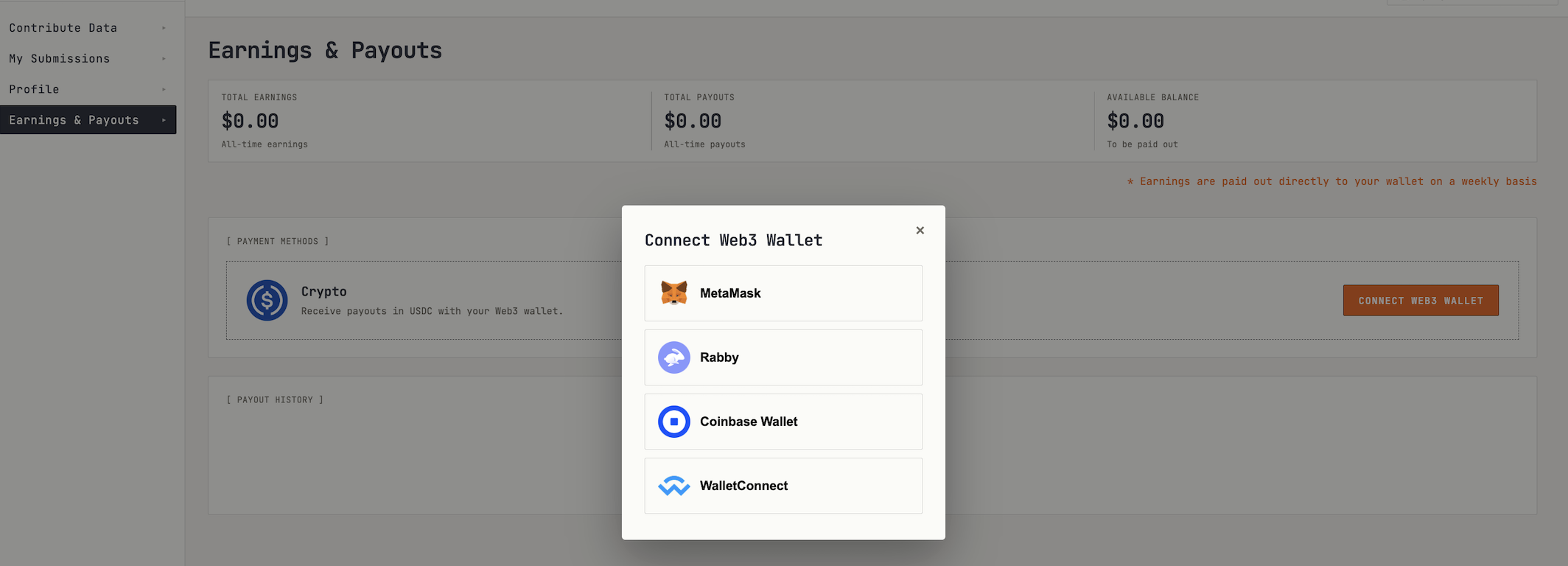
A Payout is the settlement of approved rewards to a Contributor. Arca currently pays in USDC to the Web3 wallet connected in the Dashboard. Supported wallets:
- MetaMask
- Rabby
- Coinbase Wallet
- WalletConnect
More payout methods may follow.
5. Reward Rules
Rewards depend on the quality and value of the submitted session. Arca evaluates the session and any optional repo or workspace context to determine whether it contains useful, authentic, and eligible AI workflow data.
In general, submissions with stronger relevance, authenticity, and meaningful AI interaction are more likely to receive higher rewards.
Qualification Rules
A submission may qualify for reward evaluation when it meets the following conditions:
- Supported source: The session comes from a source currently supported by Arca, such as Claude Code, Codex, Claude Cowork, VS Code extensions, or Cursor cloud agent.
- Call-for-Data match: The submission must match a listed Call-for-Data requirement in the Dashboard, such as the requested programming language, AI model, or other stated criteria.
- Eligible AI model: The session uses at least one model currently listed as eligible.
- Above minimum effective tokens threshold: The session has reached the required effective token threshold. If the session was previously uploaded, only new interactions added since that upload count toward this threshold and its next quote.
- Non-duplicate submission: The session must not duplicate a previous submission. A previously uploaded session becomes eligible again only when its new interactions meet the effective-token threshold.
- Authentic and unaltered session: The original session data must come directly from a supported source and must not be manually edited before submission.
What Affects the Rewards
Arca evaluates each session individually. Estimated quote ranges and final reward amounts may be influenced by:
- AI interaction quality: Whether the AI session shows meaningful problem solving, clear prompts, useful responses, tool usage, and progress toward a result.
- Effective interaction volume: The amount of meaningful AI activity in the session, measured using effective tokens.
- Contributor reputation score: GitHub account credibility and activity can contribute to the reward.
- Repo relevance: For supported coding sessions, attaching the matching repo or workspace can provide additional context and may increase the quote.
Arca App Guide
The Arca App finds eligible Claude Code and Codex sessions already saved on your device and can import Claude Cowork sessions from Claude Desktop. Choose which sessions to submit and optionally attach a matching repo or workspace. The Arca App anonymizes the selected data before upload and generates a preliminary quote range.
The Arca App is easy to use. Follow this guide to get started in a few steps.
Install the Arca App and Sign In/Sign Up
The Arca App is available for macOS and Windows. Download and install the latest version from the Contributor Dashboard.
Click the button on App homepage to sign in or create your Arca account, then complete the process on the Contributor Dashboard in your browser.
.png)
Find Claude Code and Codex Sessions
After signing in, the Arca App shows Claude Code and Codex sessions found on your device that use eligible AI models, along with each session’s coding tool, session start time, conversation rounds, and status. You can also click “Import from Cursor” to import eligible sessions created with Cursor Cloud Agent. Arca will use your existing Cursor sign-in; if you’re not already signed in, Arca will open Cursor and prompt you to sign in first.
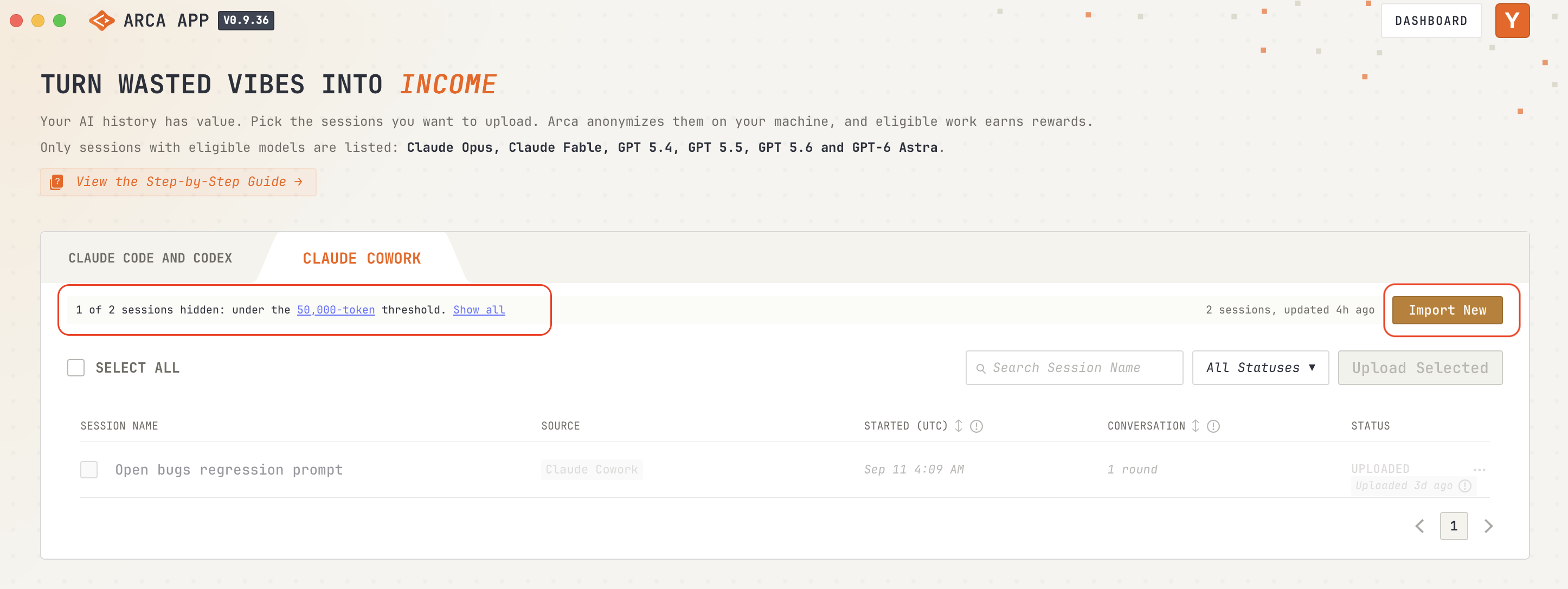
Arca lists sessions above the 50,000 effective token threshold by default; choose “Show all” to view all sessions. You can refresh the list, search by session name, filter by coding tool or status, and sort by session start time or conversation rounds.
You can also switch to the Claude Cowork tab to import and view Cowork sessions.
.png)
Each session has one of four statuses:
- Eligible: The session meets the current upload requirements and can be selected. Eligibility does not guarantee a reward. If you want to exclude an eligible session from future uploads, you can click “…” to select “Never upload this session”.

- Not Eligible: The session cannot be uploaded yet because it has fewer than 50,000 effective tokens. Continue working on this session until it reaches the required token threshold.

- Never Upload: You chose to exclude this session from uploads. You can reverse this at any time by selecting “Enable for upload “.

- Uploaded: The session has been uploaded, with no new interactions detected since then. If enough new activity is added, it may become eligible for another upload. You can also check the previous uploaded session data by selecting “Download previous upload“. This will lead you to the Dashboard, where you can view and download it.
.png)
Import Claude Cowork Sessions
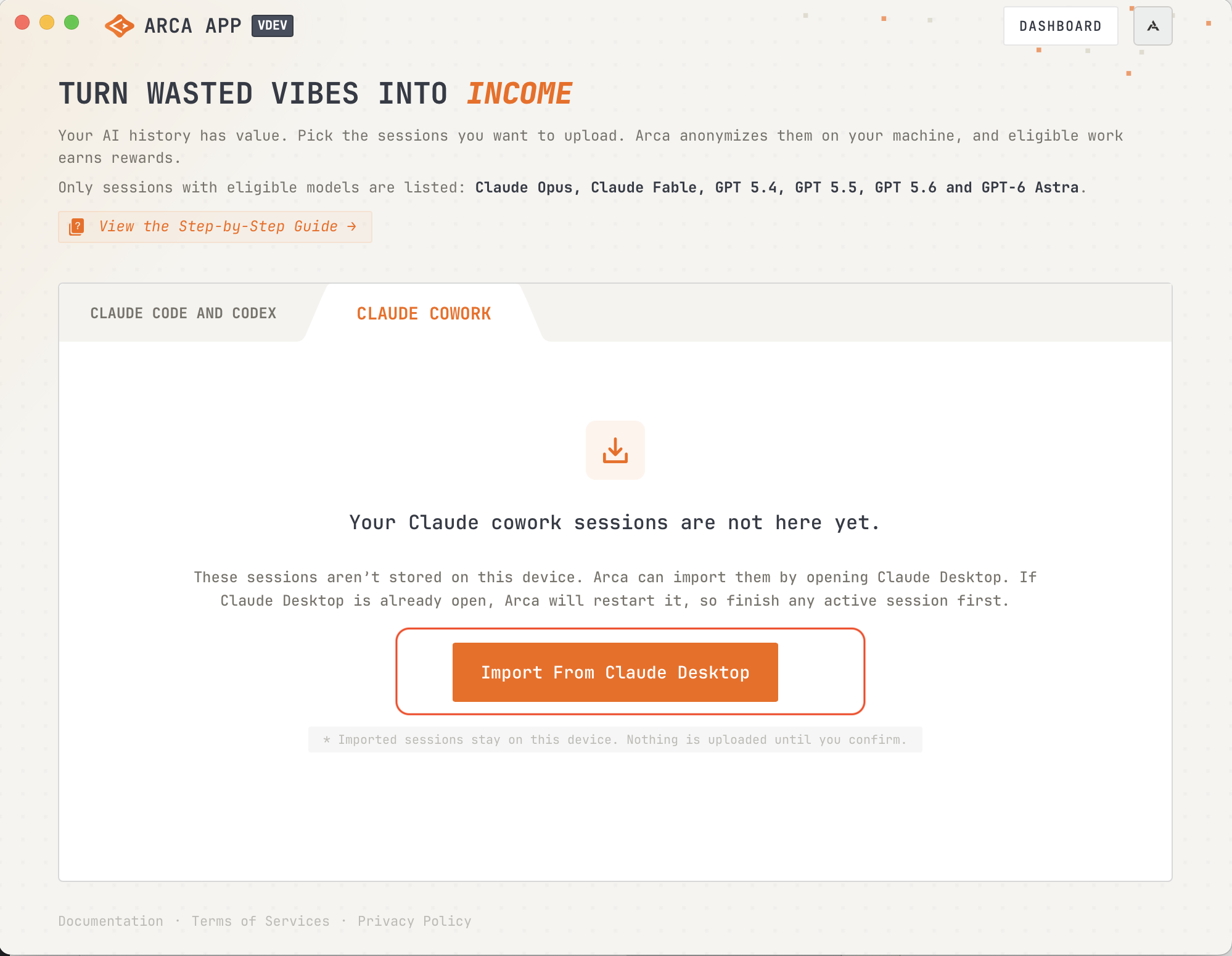
On the Claude Cowork tab, click “Import From Claude Desktop” (or “Import New”) to load your Cowork sessions. Arca lists sessions above the 50,000 effective token threshold by default; choose “Show all” to view all sessions.
Note: Arca opens Claude Desktop to import Cowork sessions.
- macOS: Arca will restart Claude Desktop if it’s already running, so make sure to finish any active work before importing.
- Windows: If Claude Desktop is already open, Arca will keep it running and import sessions in the background without interrupting your work.
Upload Selected Sessions and Get Quote
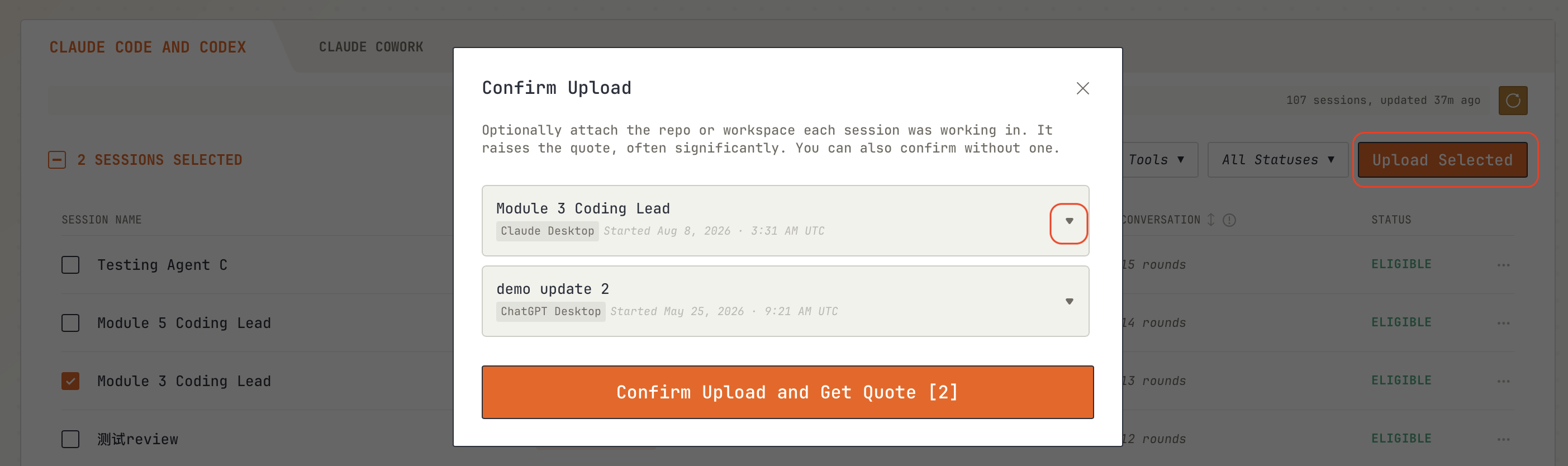
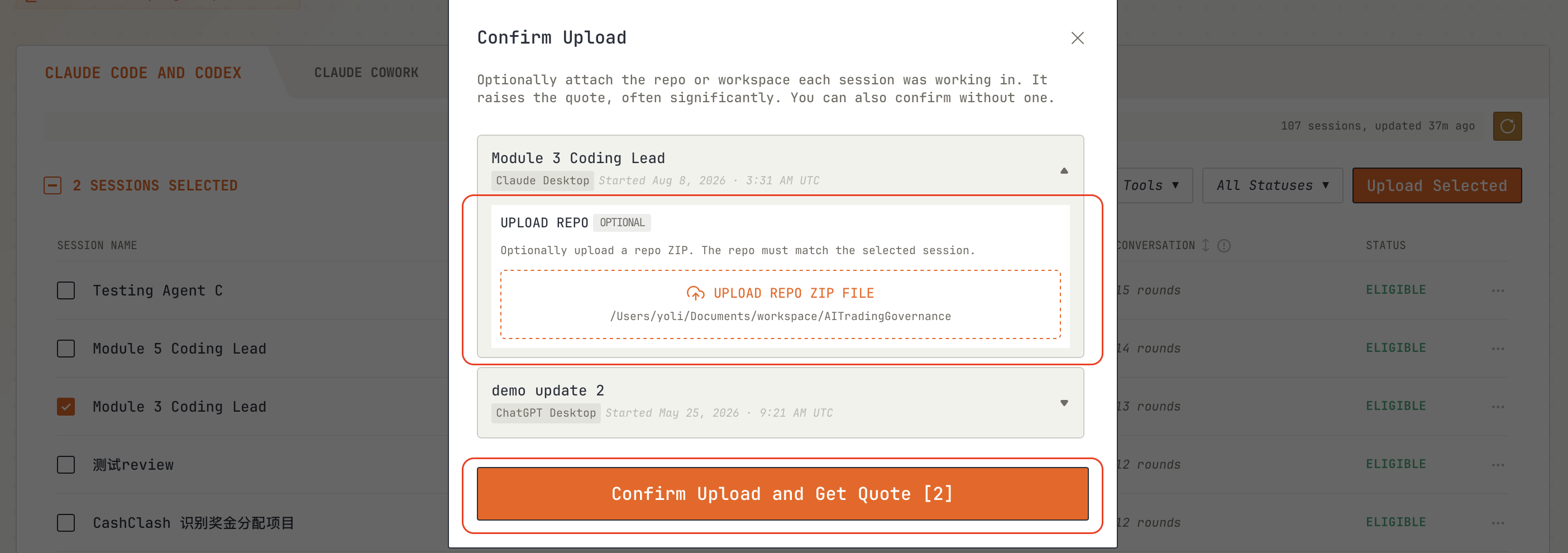
Select the sessions you want to submit to Arca for reward evaluation, then click “Upload Selected”. Confirm the upload in the pop-up to get a quote range.
You can optionally attach the repo or workspace each session was working in, which may raise the quote, or upload the session without one.
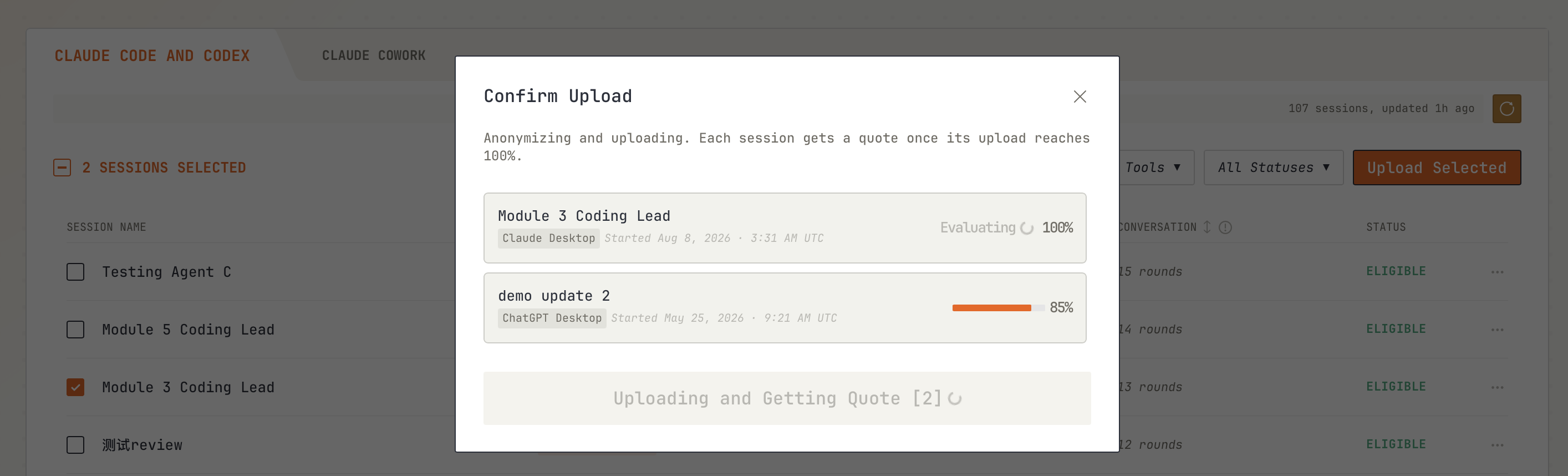
Uploading and Getting Quote
After you confirm, Arca anonymizes and uploads your selected sessions. Each session shows its upload progress. Its quote range appears once the upload reaches 100% and the preliminary evaluation finishes.
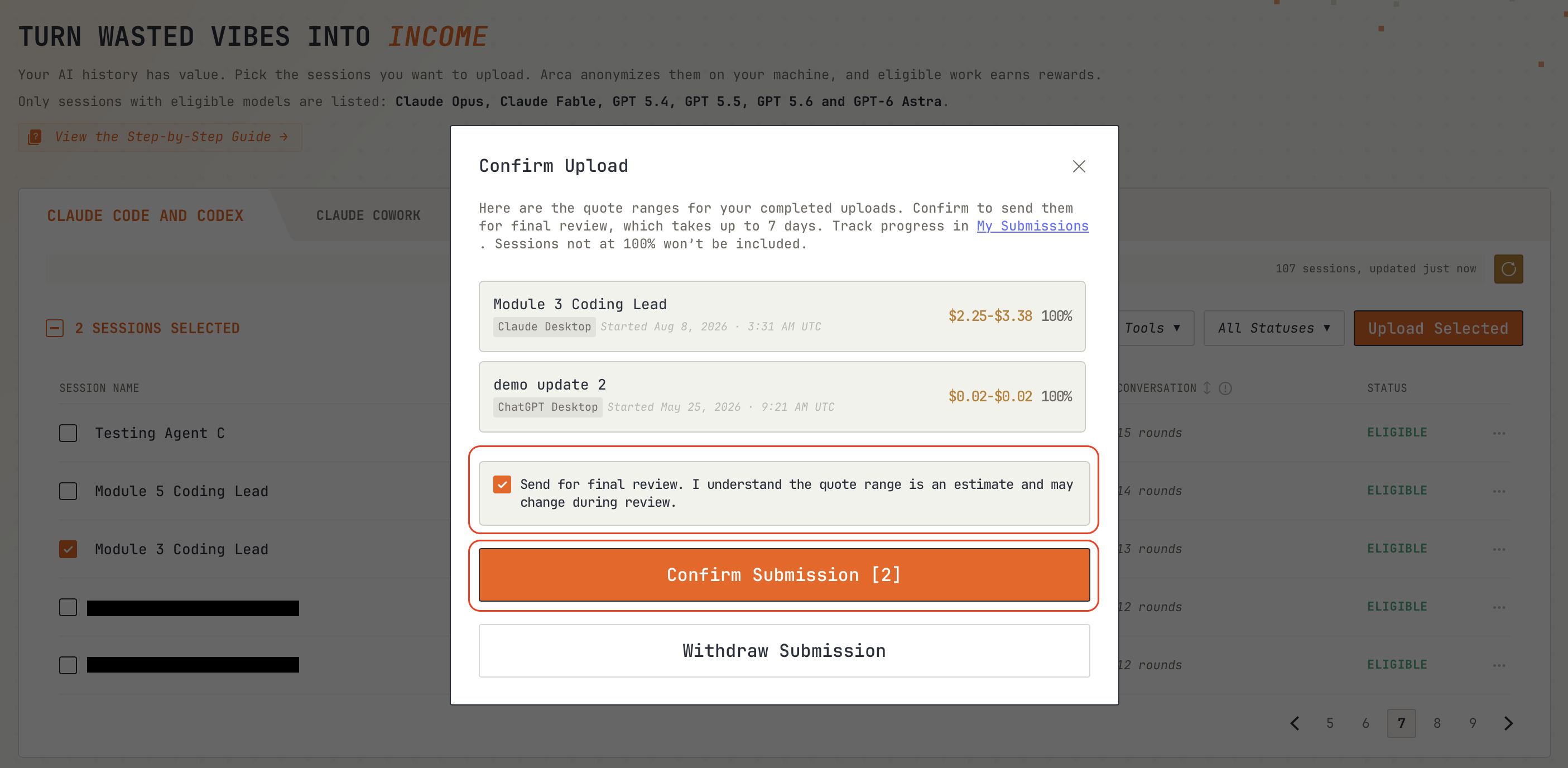
Once uploaded sessions receive a quote range, confirm to submit them to Arca if you accept the quotes. Final review may take a few days, you can visit “My Submissions” on the Contributor Dashboard to track the status and view your final earnings.
If you don’t accept a quote, you can withdraw the submission. The upload is deleted and Arca keeps nothing from withdrawn submissions.
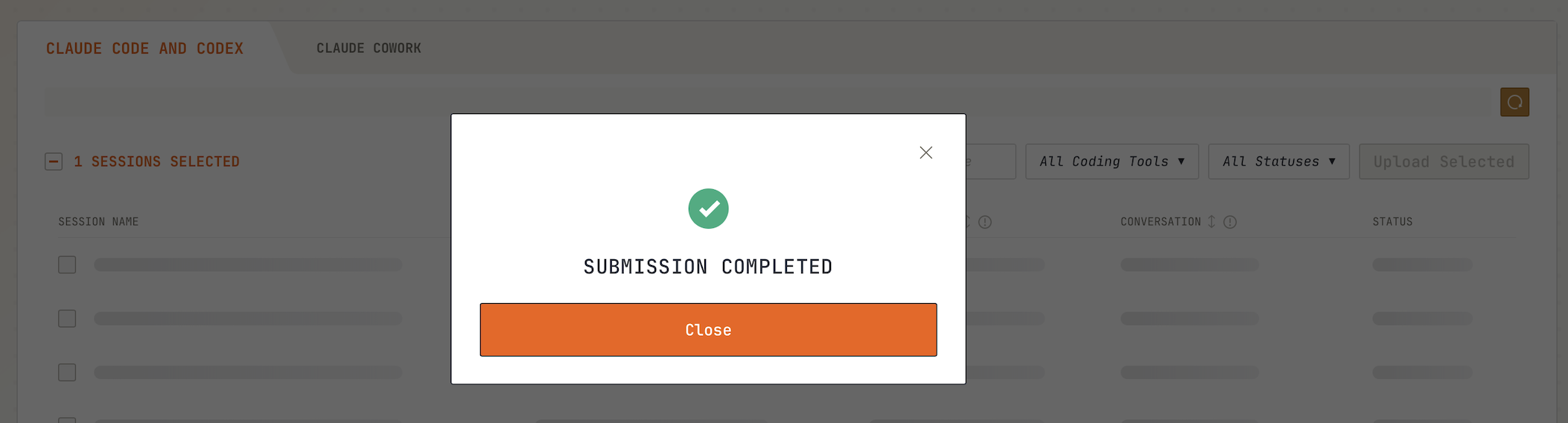
If an upload is interrupted by a network error, your progress will be saved. Click “Retry Upload” to resume the upload.
.png)
7. Contributor Dashboard Guide
The Contributor Dashboard is where Contributors sign-in, connect a GitHub account, browse available Call-for-Data opportunities, track submissions, and view earnings and payout history.
To access the dashboard, please visit: https://dashboard.arca.market/.
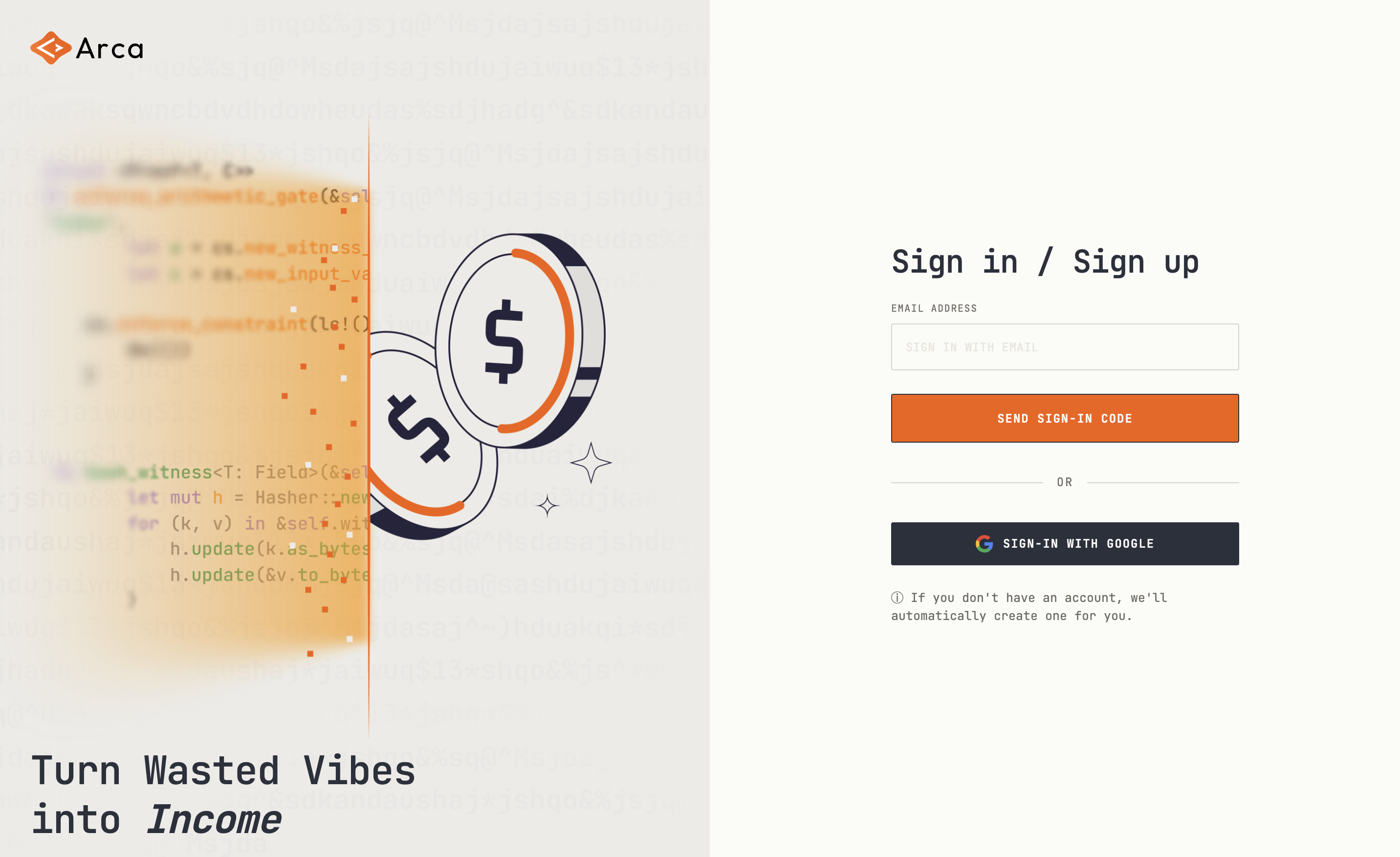
Sign in or Sign up
Visit the Contributor Dashboard and sign-in/sign-up with an email or Google account.
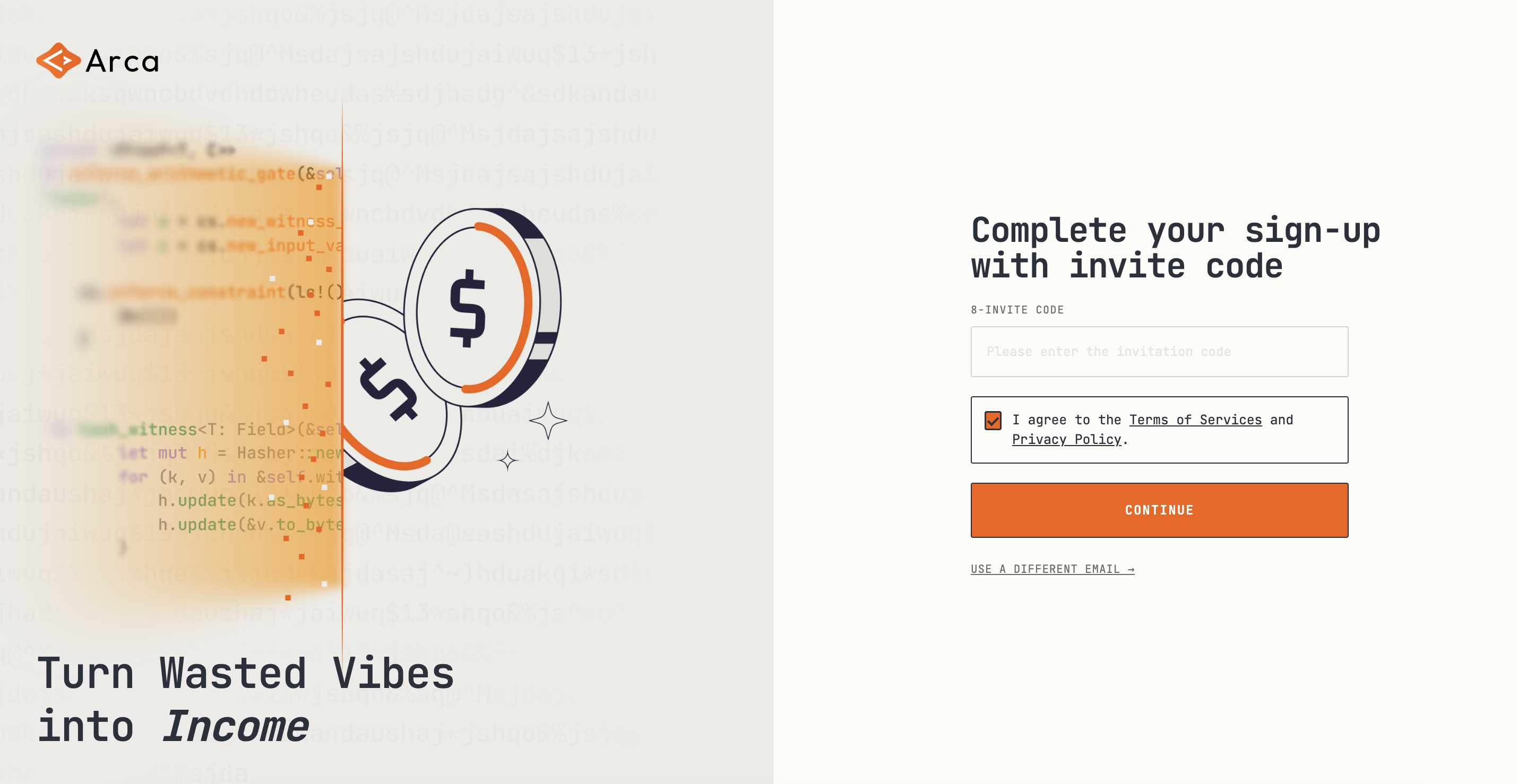
Accept Terms and Privacy Policy
New users must accept Terms of Service and Privacy Policy before sign-up is complete.
Note: Arca is currently invite-only. Enter your invite code on the sign-up screen.
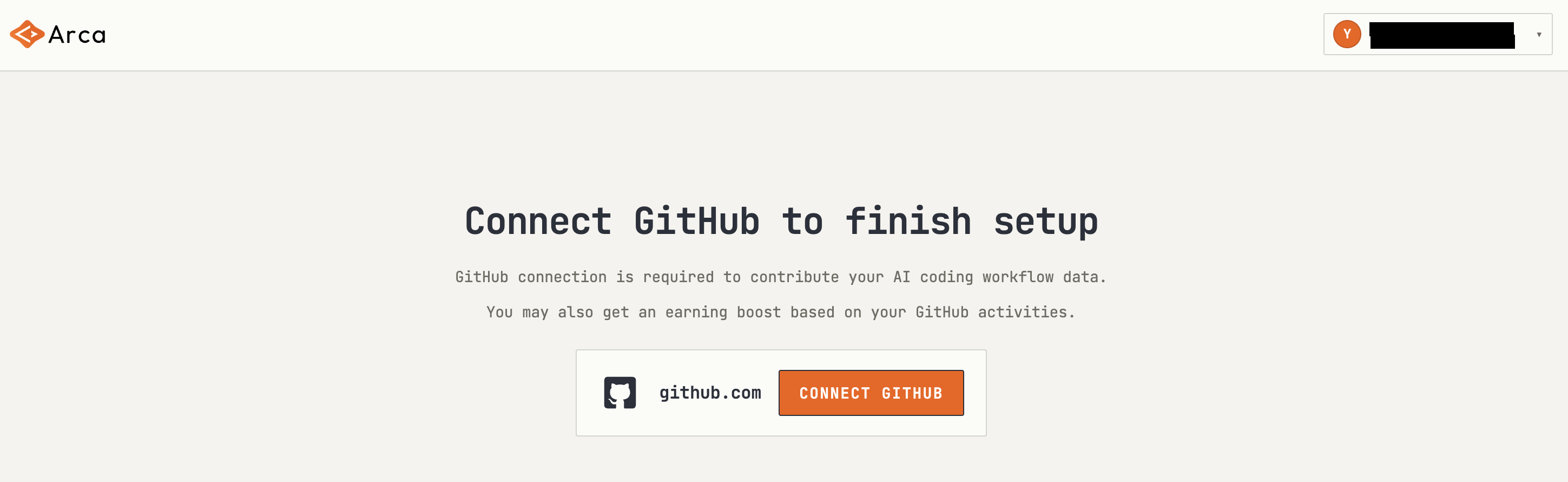
Connect GitHub
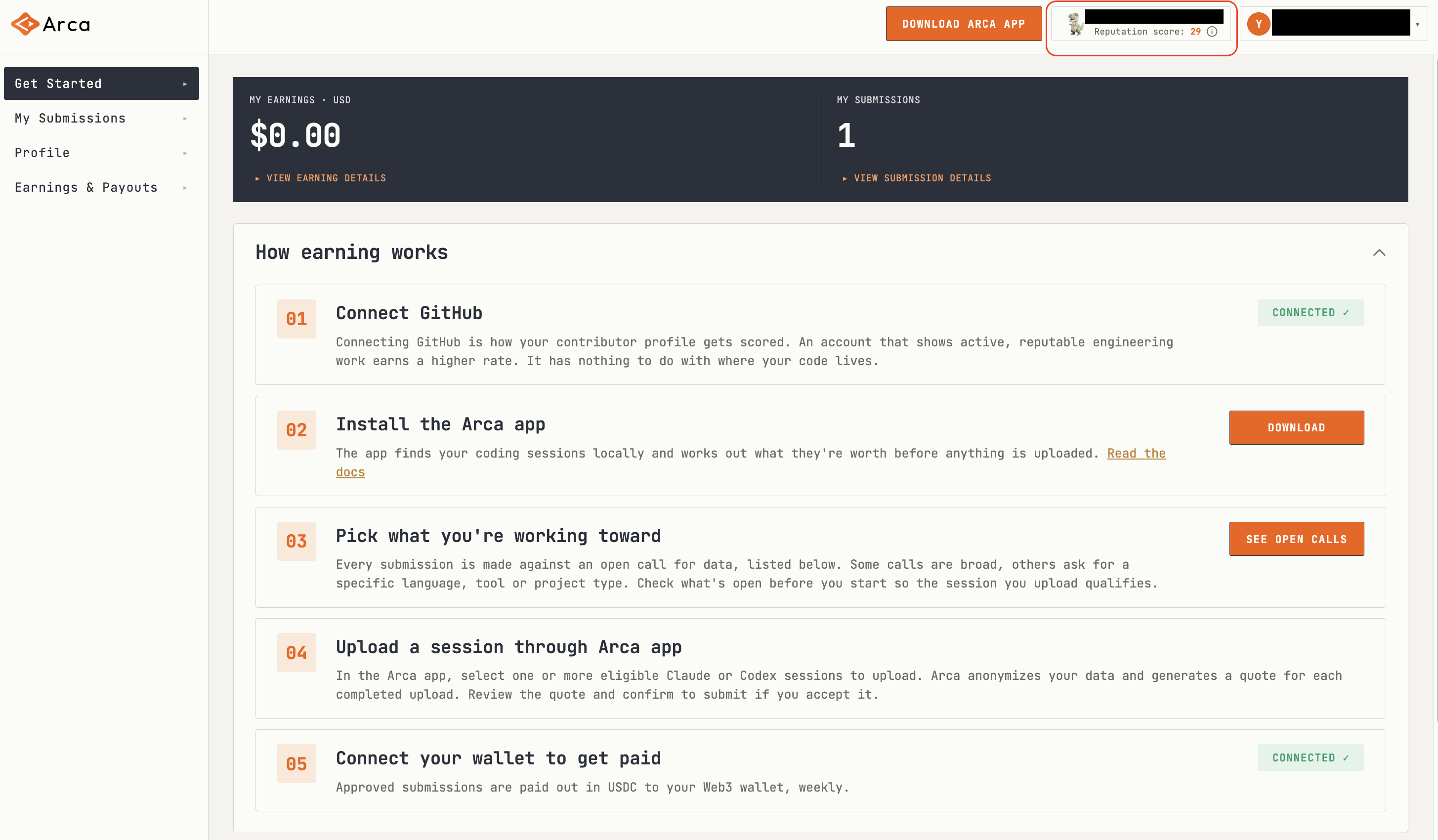
Connect GitHub to unlock submission review and reputation-based reward signals. Once connected, your GitHub reputation score will appear in the top-right corner.
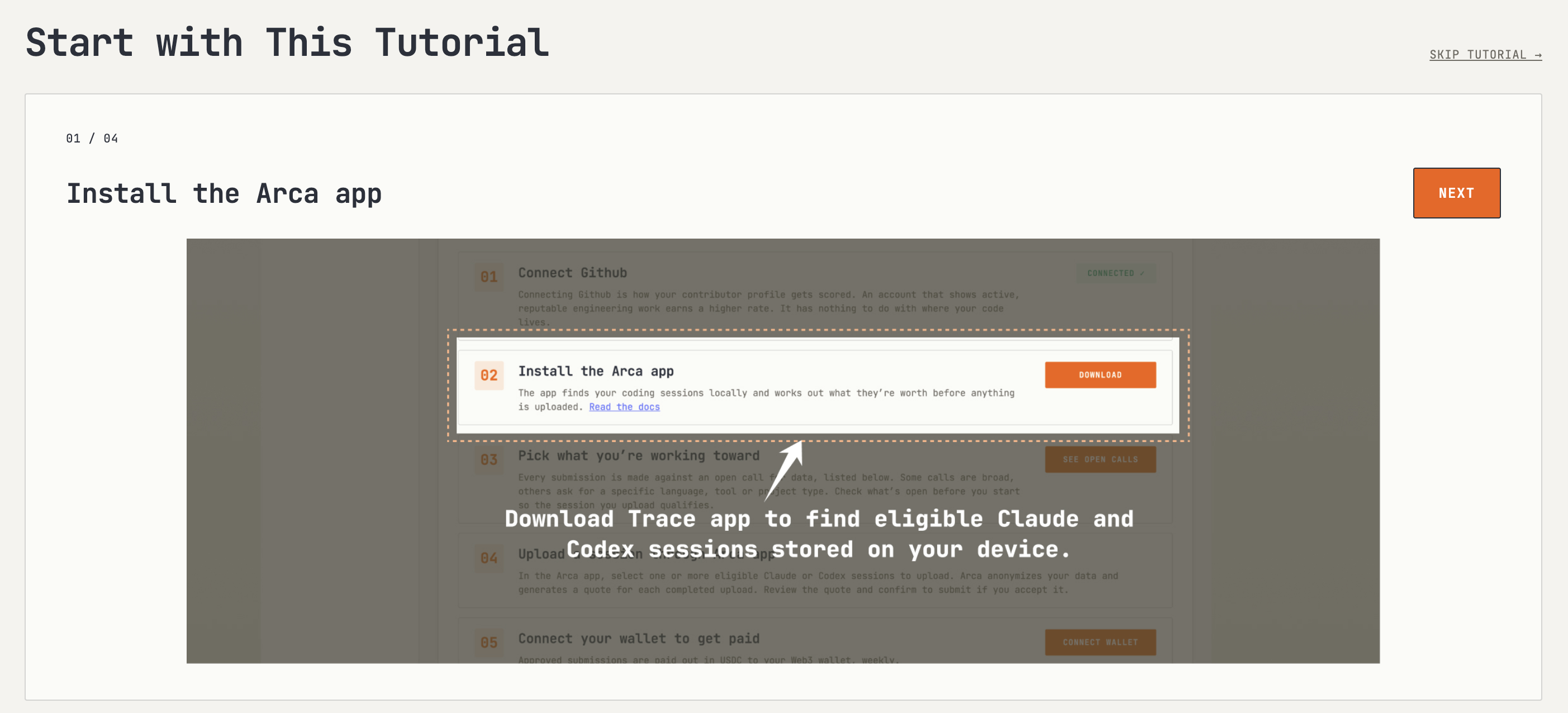
Check the Tutorial
The tutorial walks through the Dashboard: install app, browser open calls, upload sessions, and connect a wallet to get paid. You may skip this step.
Get Started
To get started, install the Arca app, browser available Call-for-Data opportunities, and connect a wallet.
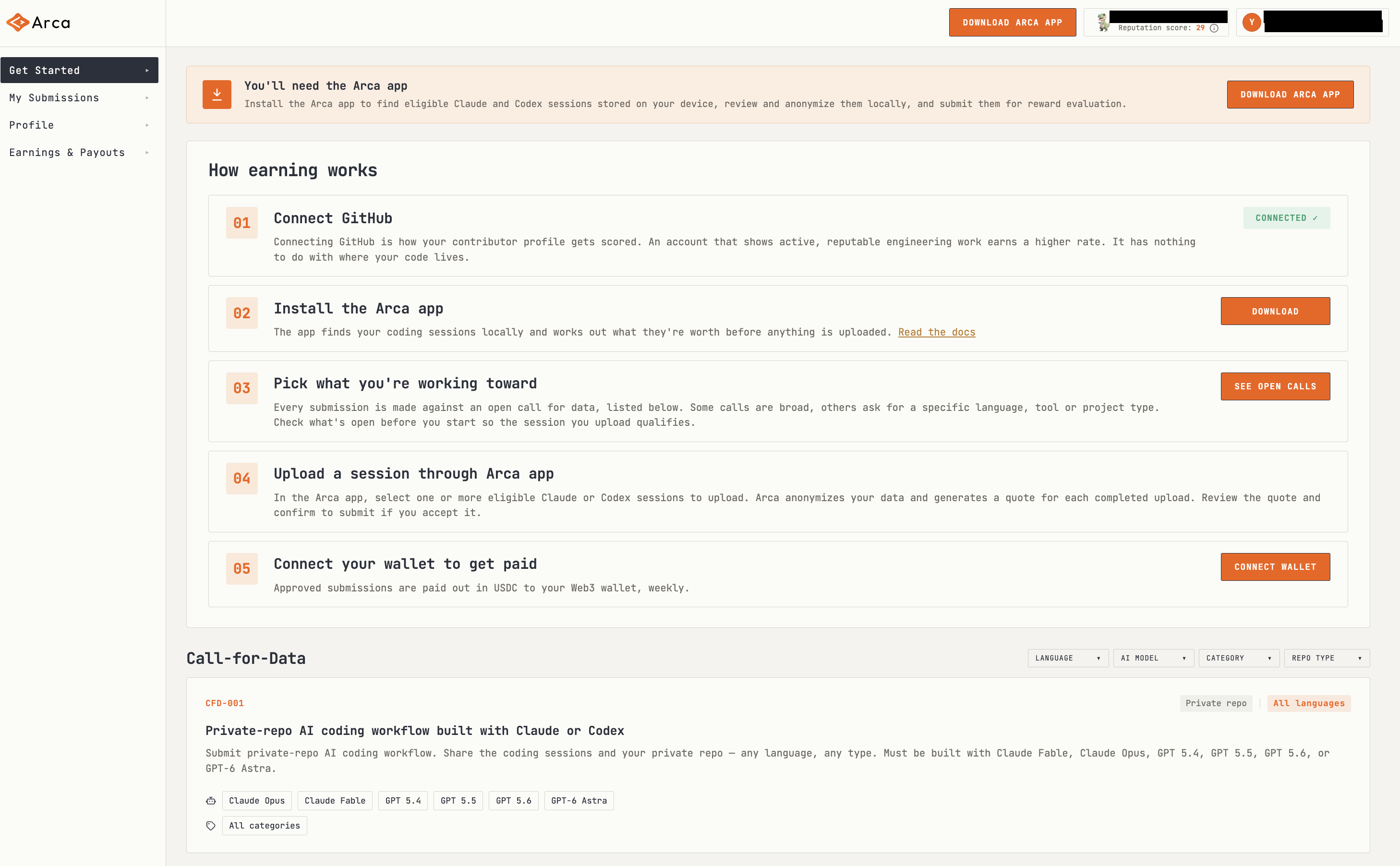
Install Arca App and Submit Sessions
To submit AI sessions, first install the Arca App. Please refer to this guide to learn how the Arca App works.
Track Submissions
Check My Submissions to track each submission through In review, Approved or Rejected. Each row shows a session ID, an artifact hash and a download of exactly what was uploaded, so you can check what was reviewed against what you sent.
.png)
Manage Profile
You can manage your account information, avatar, display name, connected accounts and connected wallet in Profile page.
.png)
Check Earnings and Connect Payout Wallet
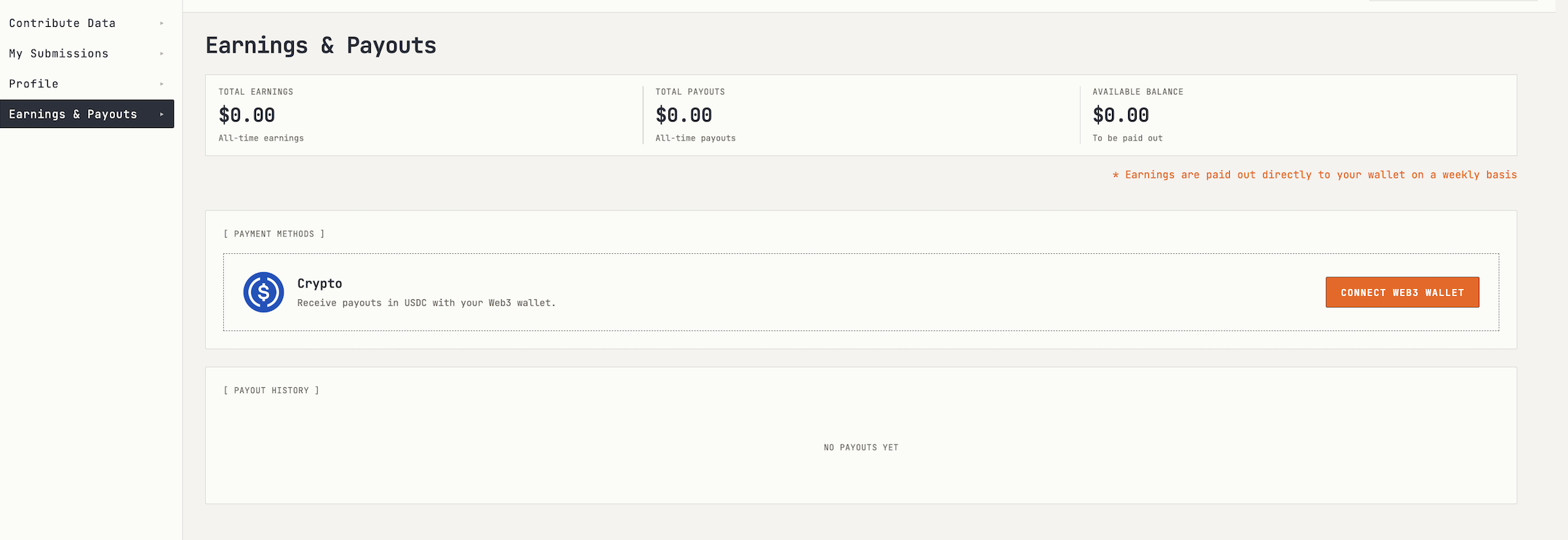
The Earnings & Payouts page shows total earnings, payouts, available balance, and payment methods.
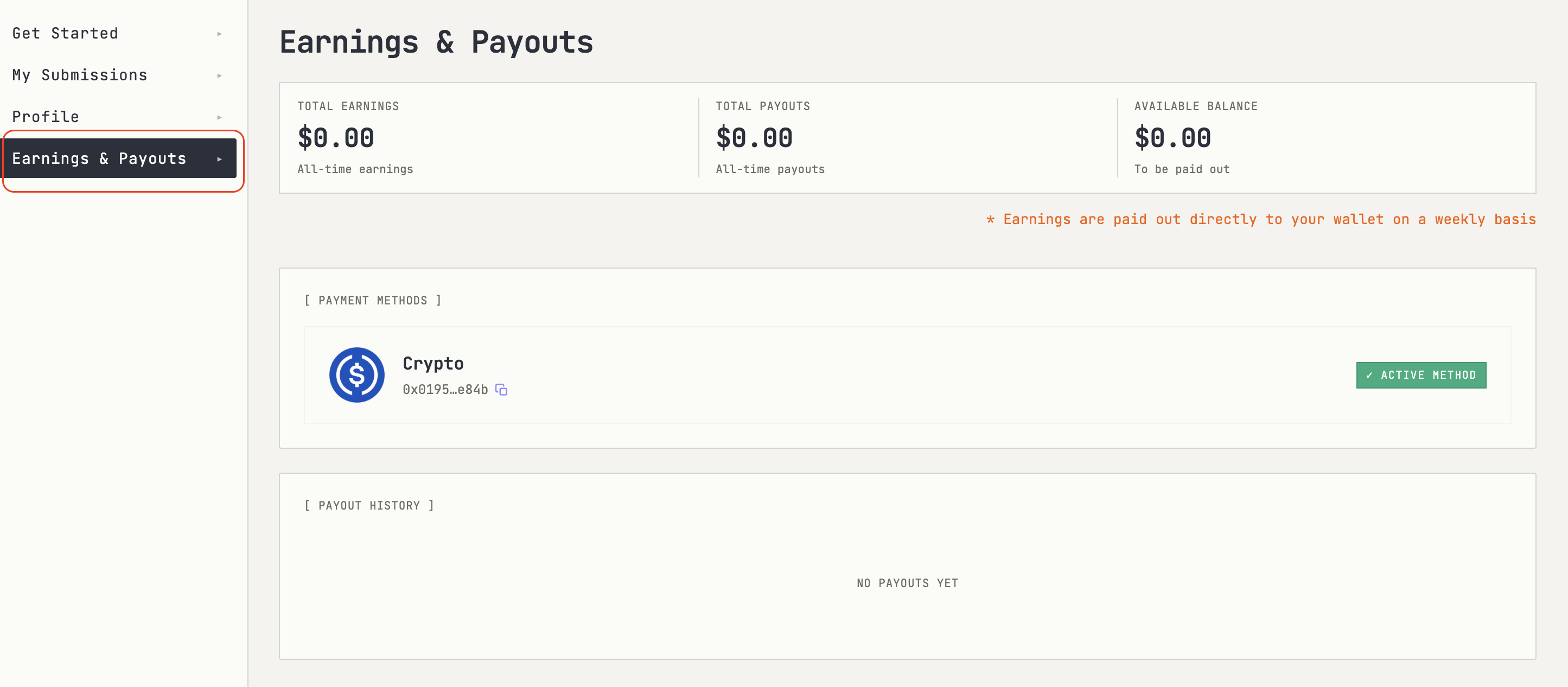
If no payout wallet is connected, click “CONNECT WEB3 WALLET” and choose a supported wallet provider and sign the message to connect.
8. Terms & Privacy
These policies apply to the Arca App, Contributor Dashboard, and related Arca services.
Terms of Service
Understand the rules for using Arca. Read the Terms of Service →
Privacy Policy
Learn what data Arca collects, and how it is used and protected. Read the Privacy Policy →