Arca App Guide
The Arca App finds eligible Claude Code and Codex sessions already saved on your device and can import Claude Cowork sessions from Claude Desktop. Choose which sessions to submit and optionally attach a matching repo or workspace. The Arca App anonymizes the selected data before upload and generates a preliminary quote range.
The Arca App is easy to use. Follow this guide to get started in a few steps.
Install the Arca App and Sign In/Sign Up
The Arca App is available for macOS and Windows. Download and install the latest version from the Contributor Dashboard.
Click the button on App homepage to sign in or create your Arca account, then complete the process on the Contributor Dashboard in your browser.
.png)
Find Claude Code and Codex Sessions
After signing in, the Arca App shows Claude Code and Codex sessions found on your device that use eligible AI models, along with each session’s coding tool, session start time, conversation rounds, and status. You can also click “Import from Cursor” to import eligible sessions created with Cursor Cloud Agent. Arca will use your existing Cursor sign-in; if you’re not already signed in, Arca will open Cursor and prompt you to sign in first.
Arca lists sessions above the 50,000 effective token threshold by default; choose “Show all” to view all sessions. You can refresh the list, search by session name, filter by coding tool or status, and sort by session start time or conversation rounds.
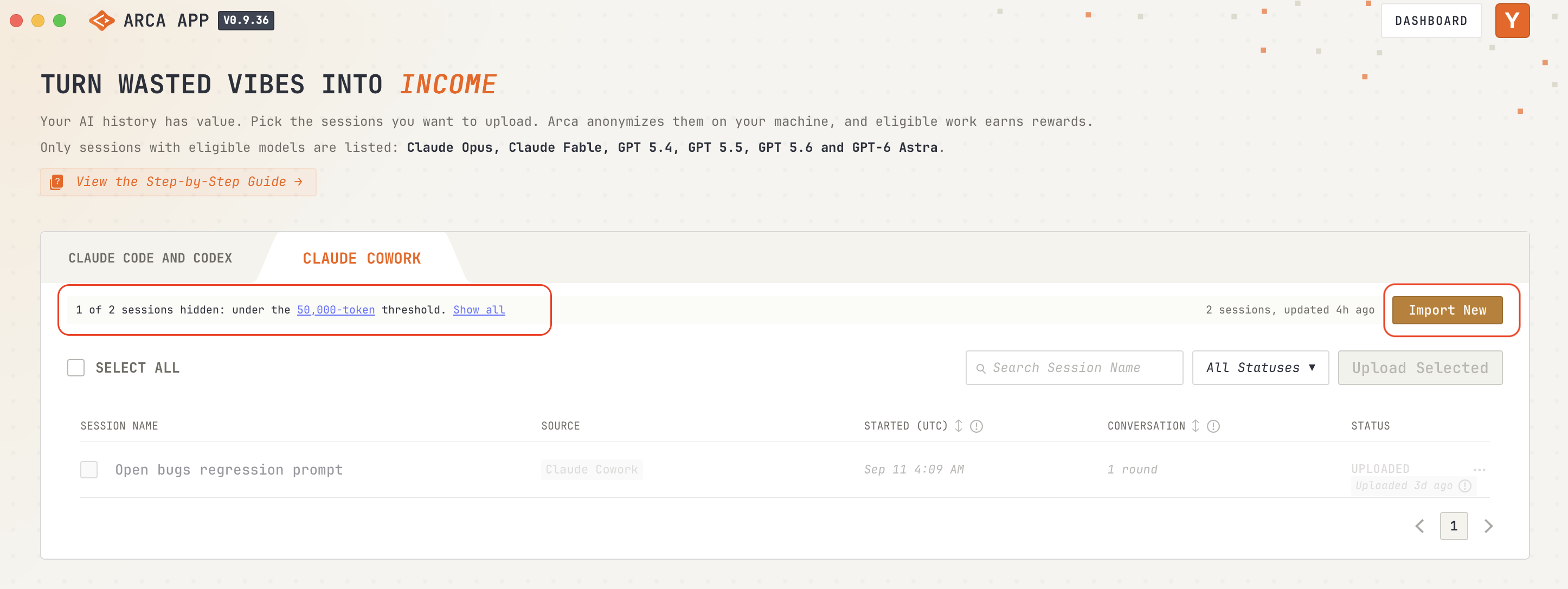
You can also switch to the Claude Cowork tab to import and view Cowork sessions.
.png)
Each session has one of four statuses:
- Eligible: The session meets the current upload requirements and can be selected. Eligibility does not guarantee a reward. If you want to exclude an eligible session from future uploads, you can click “…” to select “Never upload this session”.

- Not Eligible: The session cannot be uploaded yet because it has fewer than 50,000 effective tokens. Continue working on this session until it reaches the required token threshold.

- Never Upload: You chose to exclude this session from uploads. You can reverse this at any time by selecting “Enable for upload “.

- Uploaded: The session has been uploaded, with no new interactions detected since then. If enough new activity is added, it may become eligible for another upload. You can also check the previous uploaded session data by selecting “Download previous upload“. This will lead you to the Dashboard, where you can view and download it.
.png)
Import Claude Cowork Sessions
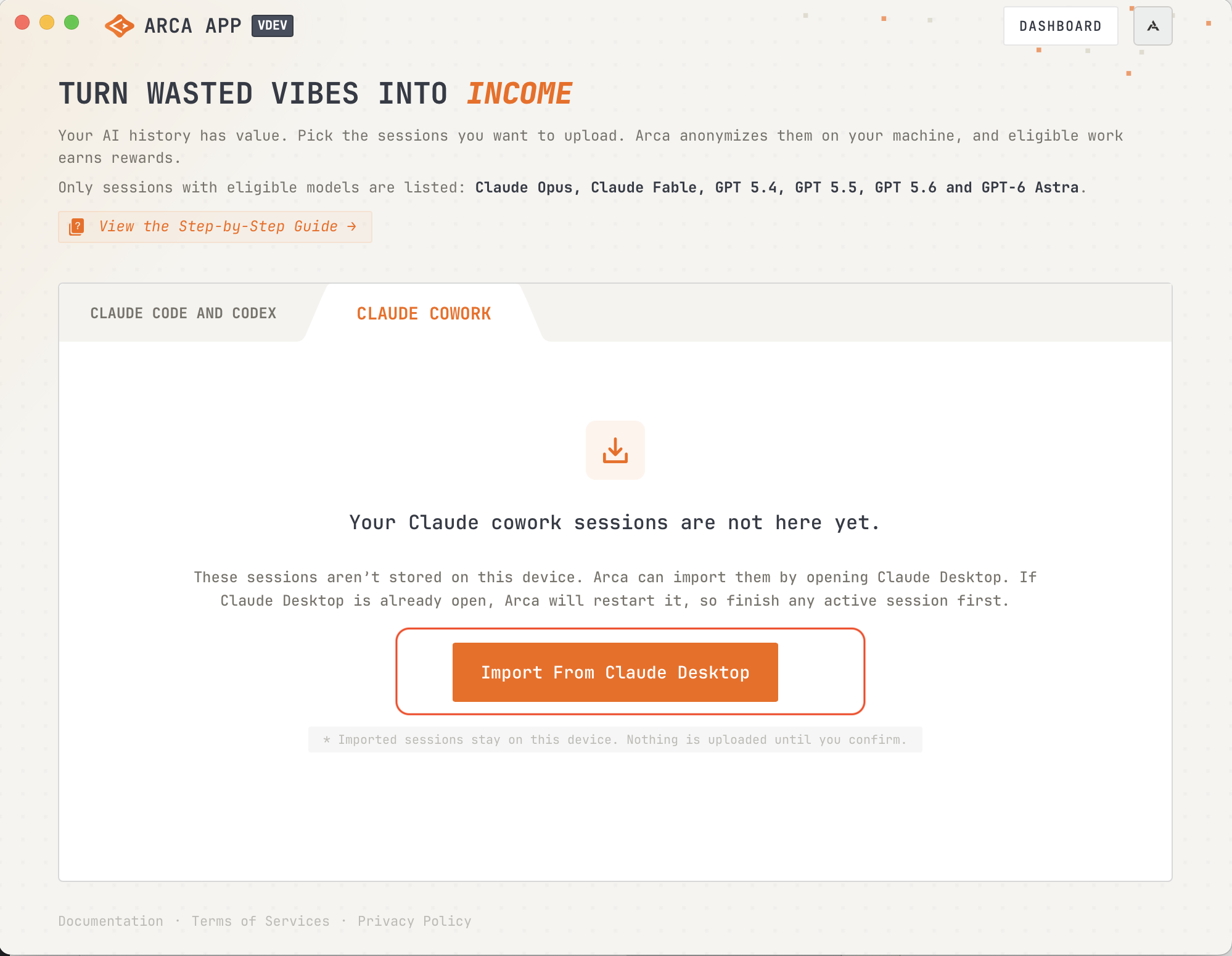
On the Claude Cowork tab, click “Import From Claude Desktop” (or “Import New”) to load your Cowork sessions. Arca lists sessions above the 50,000 effective token threshold by default; choose “Show all” to view all sessions.
Note: Arca opens Claude Desktop to import Cowork sessions.
- macOS: Arca will restart Claude Desktop if it’s already running, so make sure to finish any active work before importing.
- Windows: If Claude Desktop is already open, Arca will keep it running and import sessions in the background without interrupting your work.
Upload Selected Sessions and Get Quote
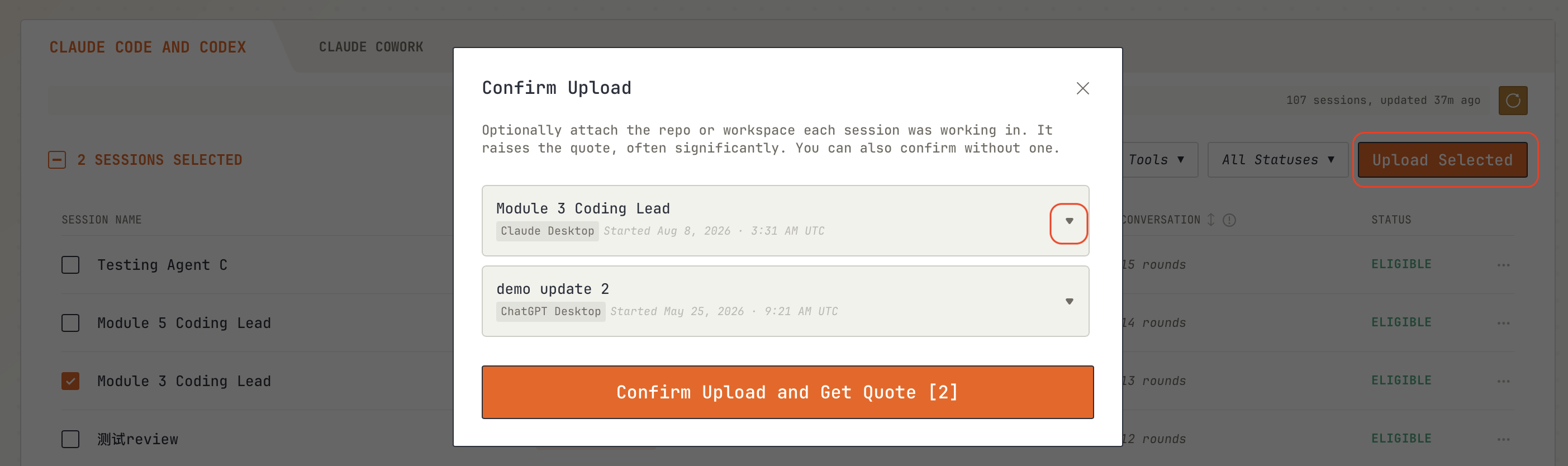
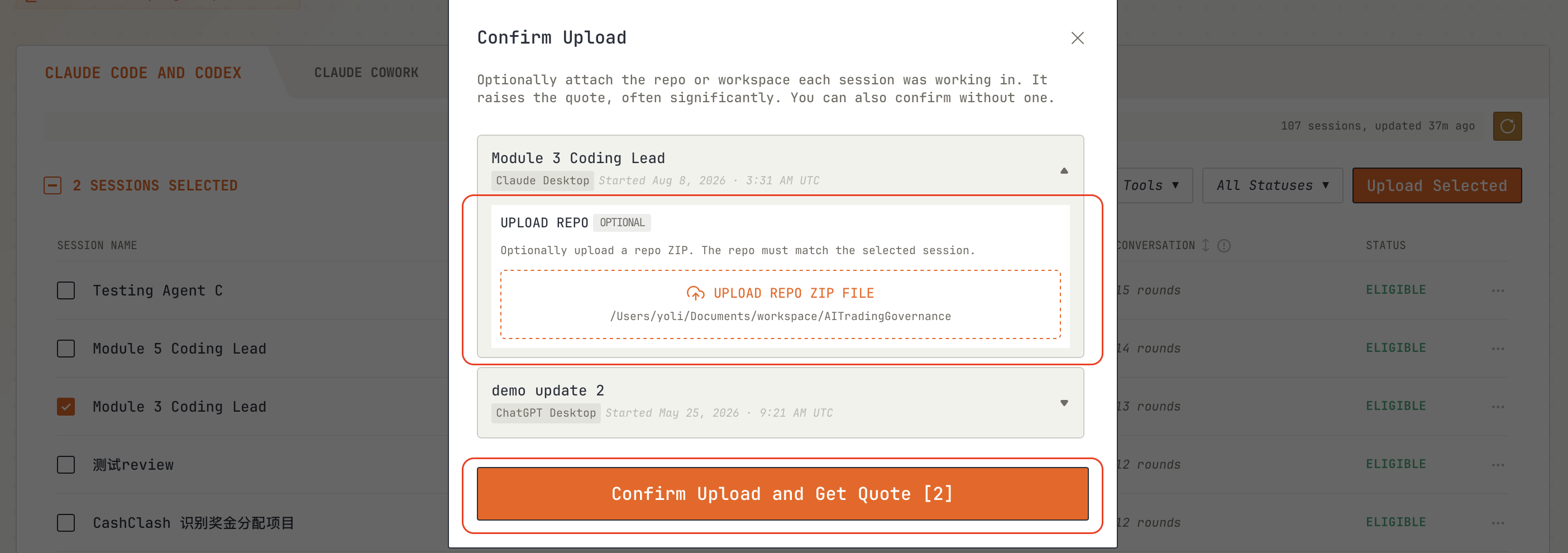
Select the sessions you want to submit to Arca for reward evaluation, then click “Upload Selected”. Confirm the upload in the pop-up to get a quote range.
You can optionally attach the repo or workspace each session was working in, which may raise the quote, or upload the session without one.
Uploading and Getting Quote
After you confirm, Arca anonymizes and uploads your selected sessions. Each session shows its upload progress. Its quote range appears once the upload reaches 100% and the preliminary evaluation finishes.
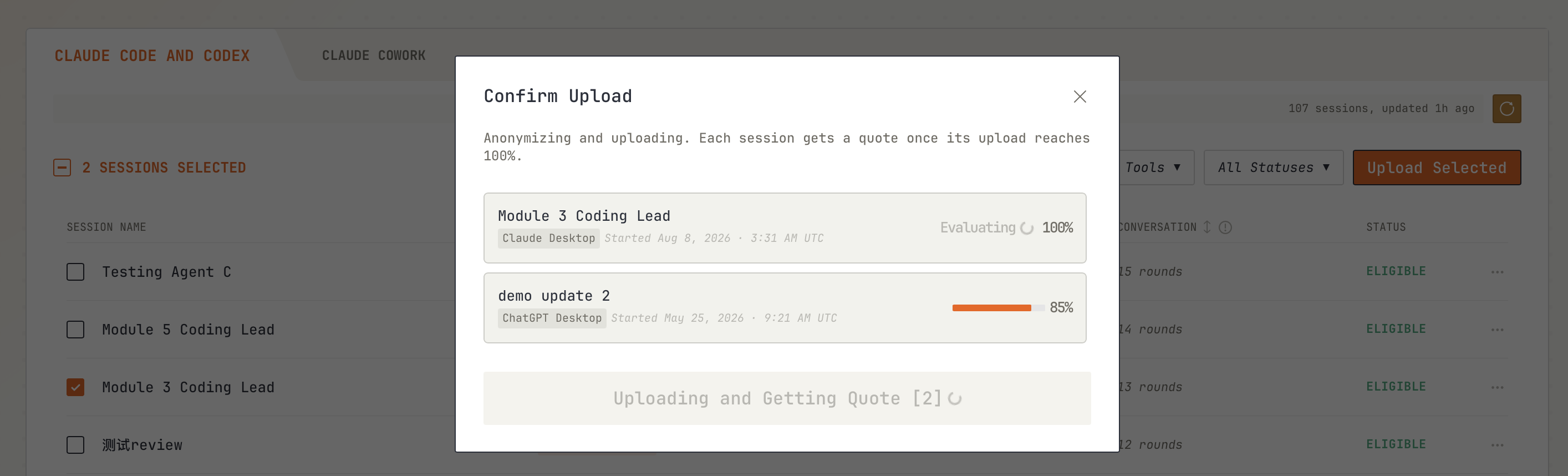
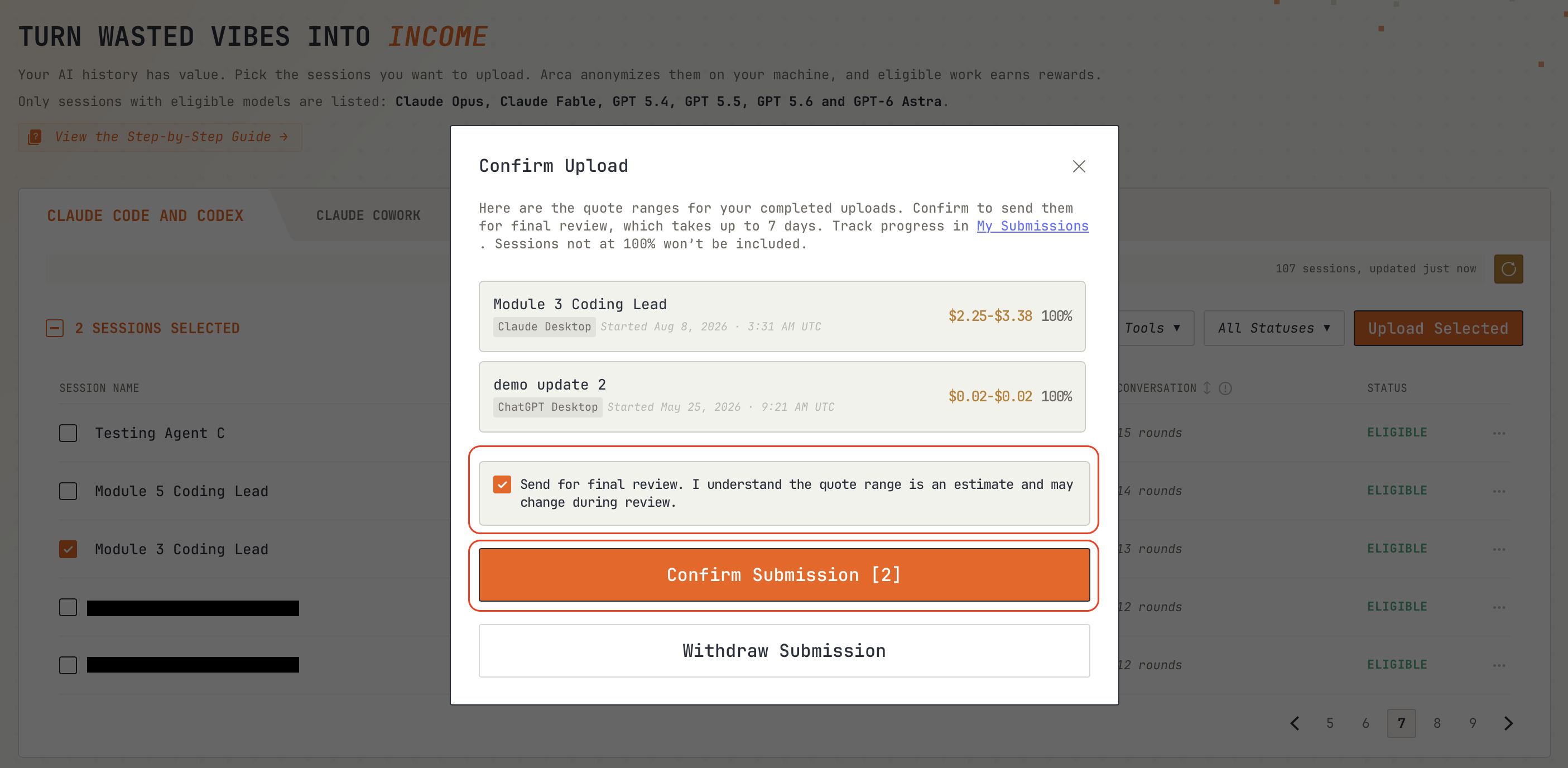
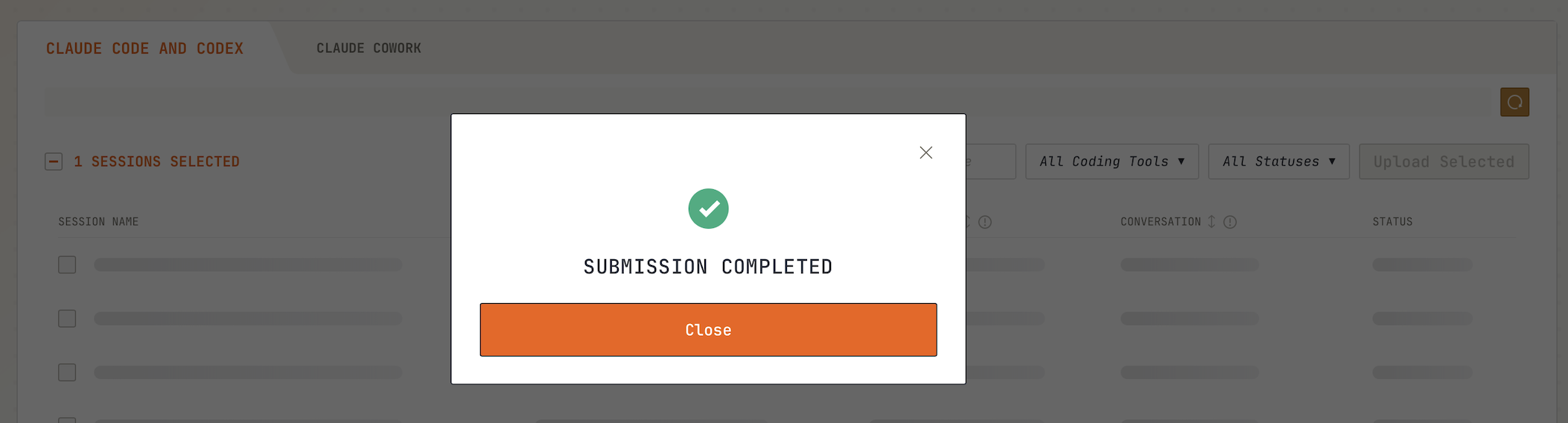
Once uploaded sessions receive a quote range, confirm to submit them to Arca if you accept the quotes. Final review may take a few days, you can visit “My Submissions” on the Contributor Dashboard to track the status and view your final earnings.
If you don’t accept a quote, you can withdraw the submission. The upload is deleted and Arca keeps nothing from withdrawn submissions.
If an upload is interrupted by a network error, your progress will be saved. Click “Retry Upload” to resume the upload.
.png)