7. Contributor Dashboard Guide
The Contributor Dashboard is where Contributors sign-in, connect a GitHub account, browse available Call-for-Data opportunities, track submissions, and view earnings and payout history.
To access the dashboard, please visit: https://dashboard.arca.market/.
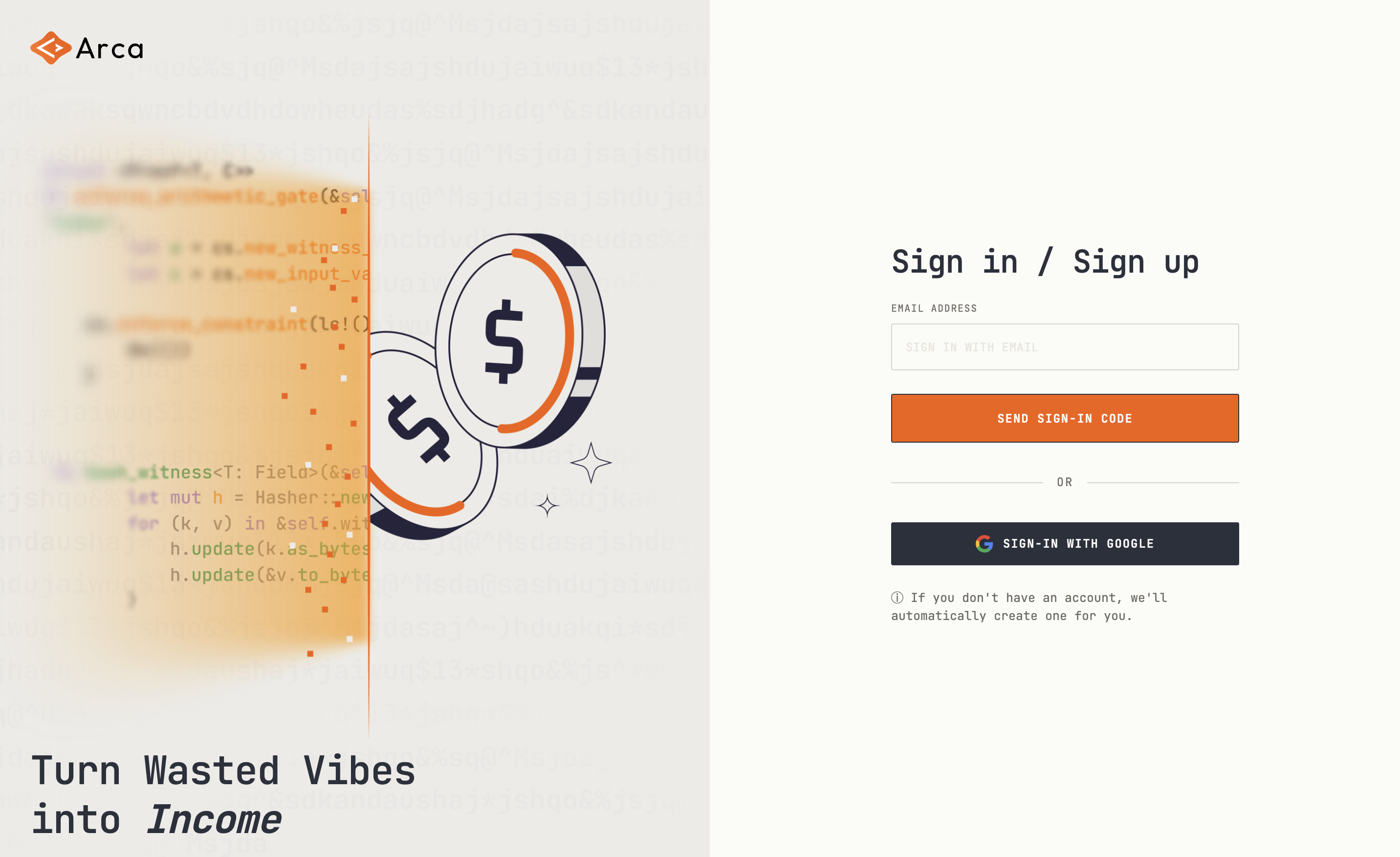
Sign in or Sign up
Visit the Contributor Dashboard and sign-in/sign-up with an email or Google account.
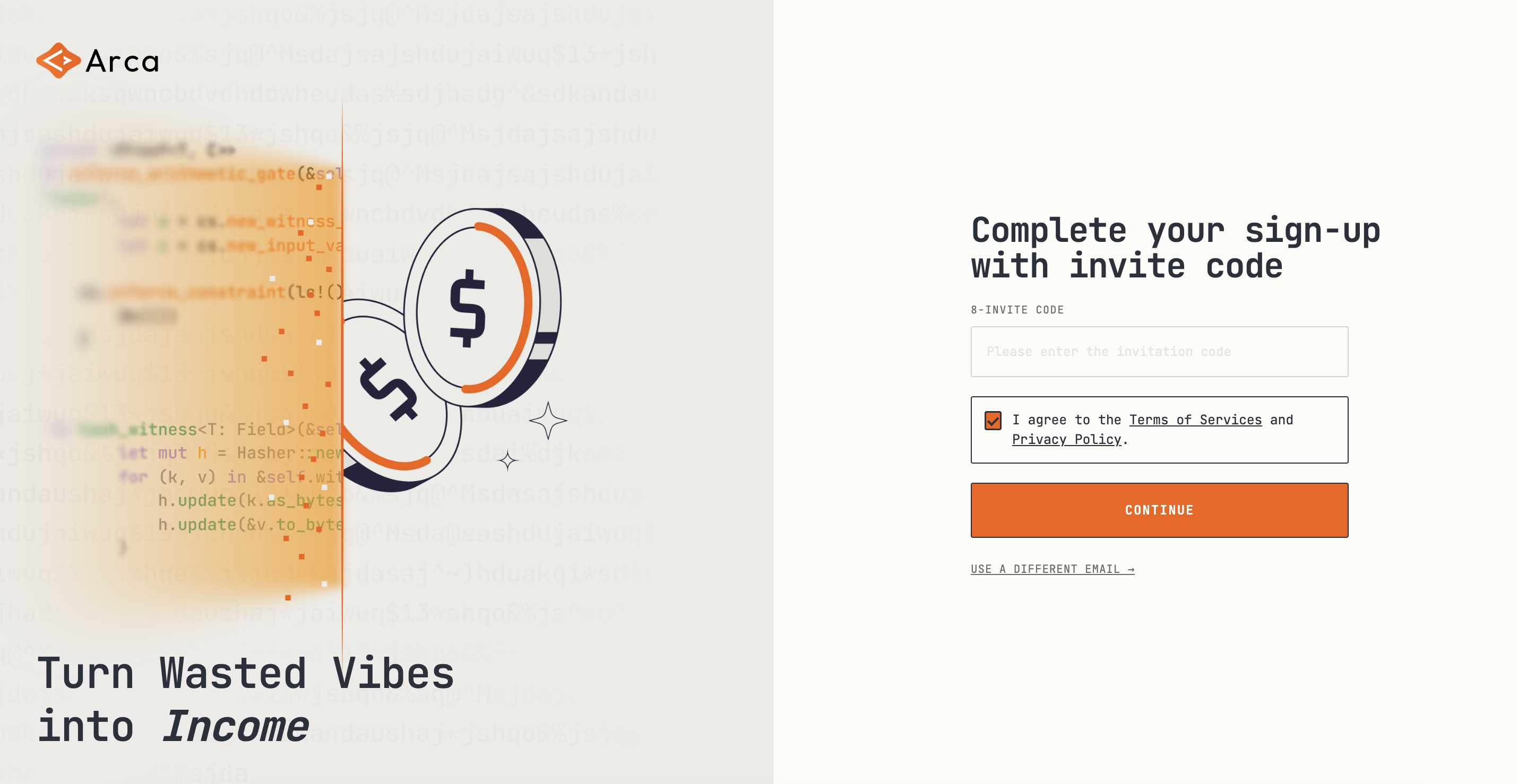
Accept Terms and Privacy Policy
New users must accept Terms of Service and Privacy Policy before sign-up is complete.
Note: Arca is currently invite-only. Enter your invite code on the sign-up screen.
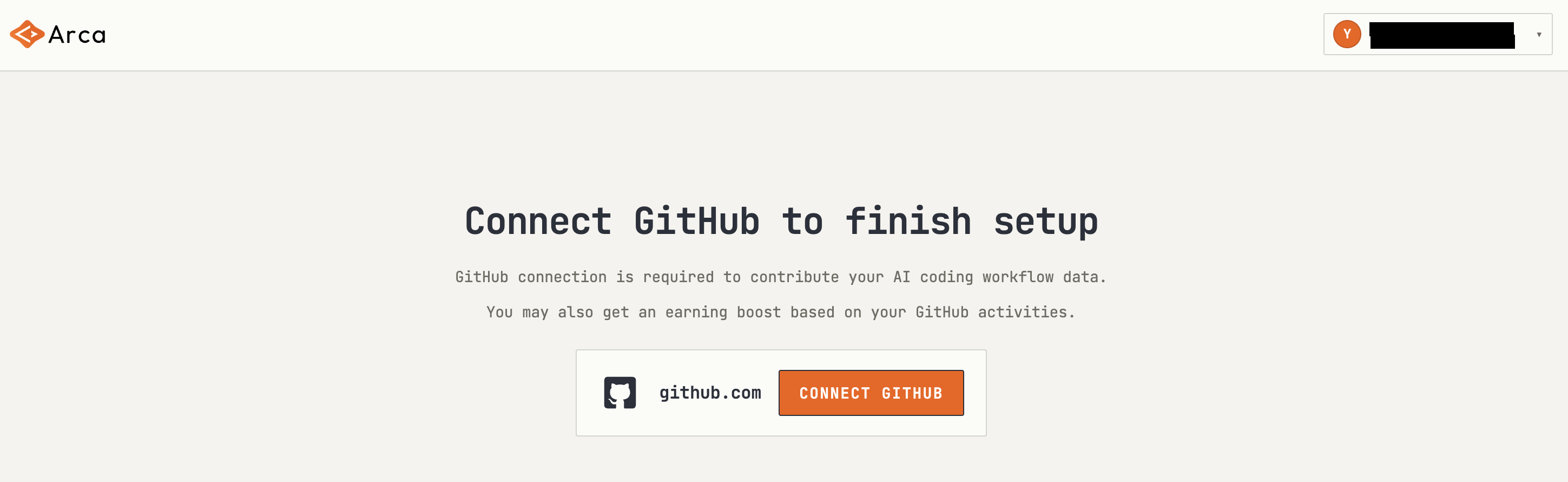
Connect GitHub
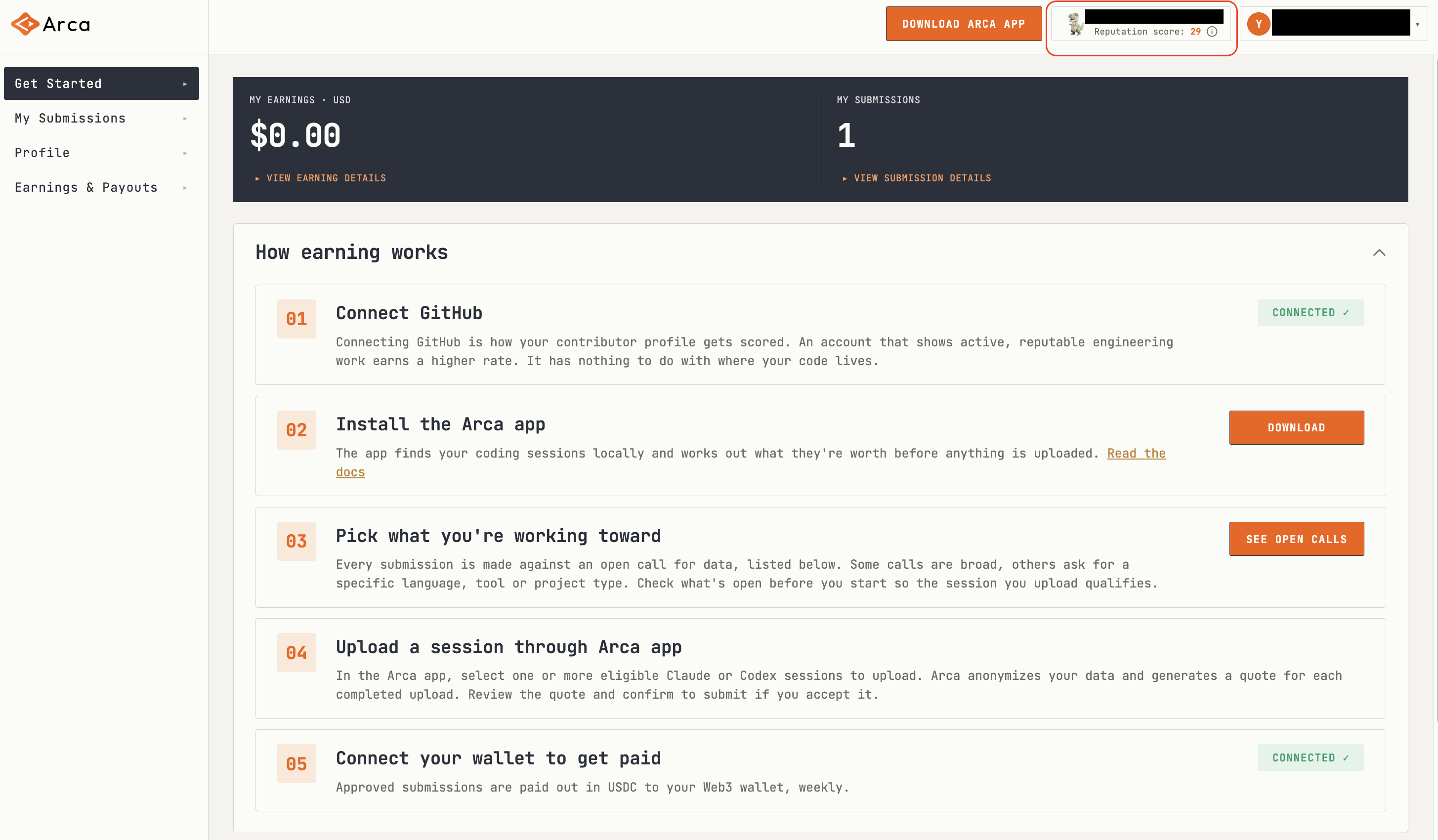
Connect GitHub to unlock submission review and reputation-based reward signals. Once connected, your GitHub reputation score will appear in the top-right corner.
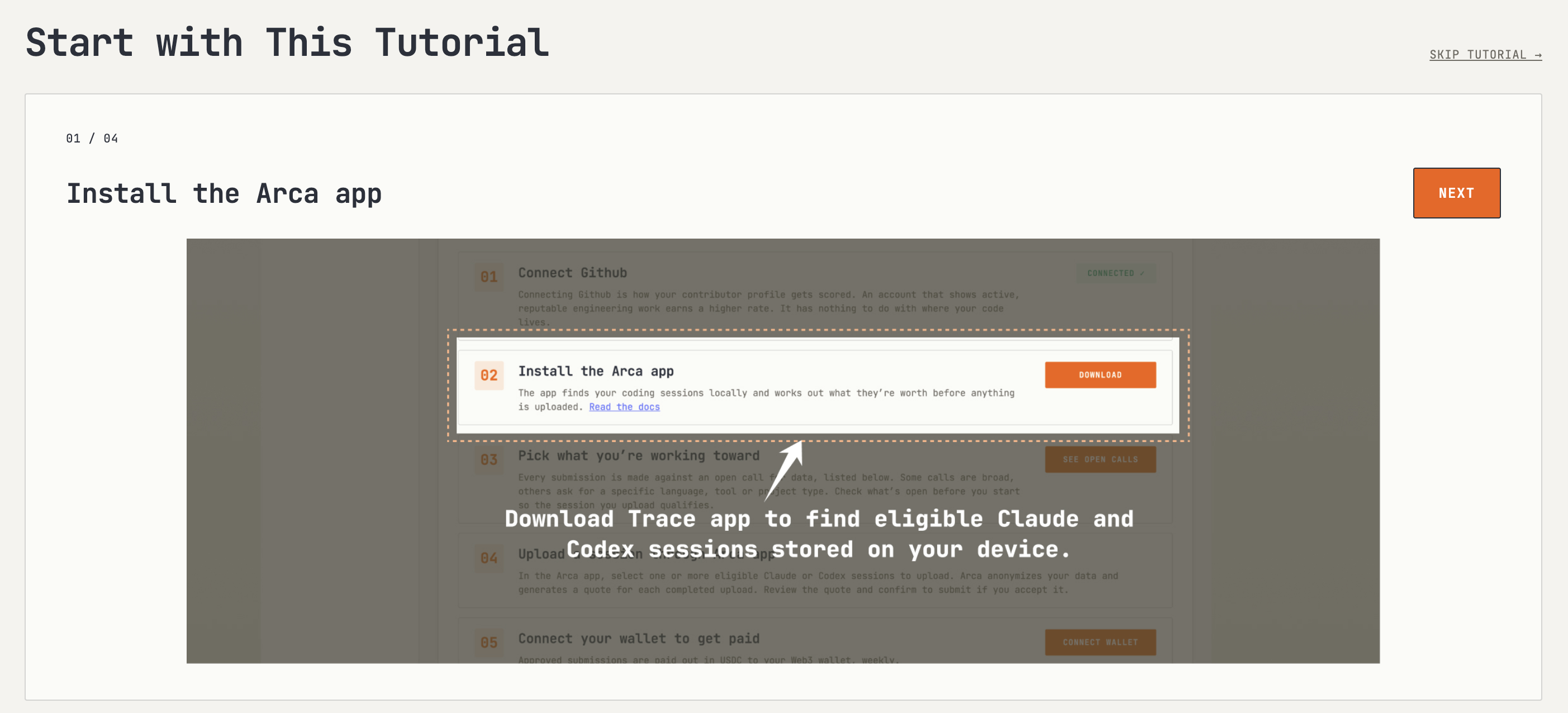
Check the Tutorial
The tutorial walks through the Dashboard: install app, browser open calls, upload sessions, and connect a wallet to get paid. You may skip this step.
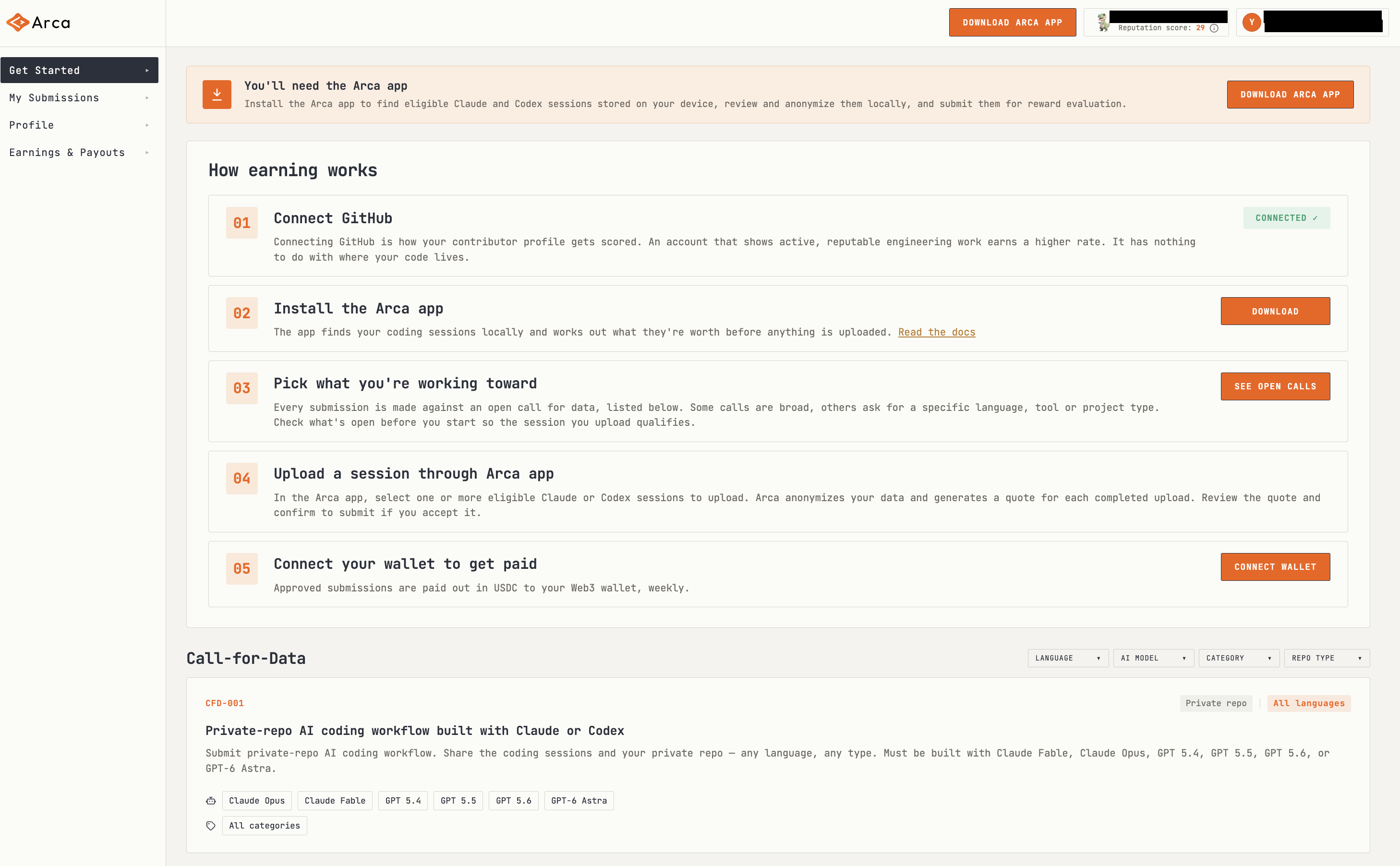
Get Started
To get started, install the Arca app, browser available Call-for-Data opportunities, and connect a wallet.
Install Arca App and Submit Sessions
To submit AI sessions, first install the Arca App. Please refer to this guide to learn how the Arca App works.
Track Submissions
Check My Submissions to track each submission through In review, Approved or Rejected. Each row shows a session ID, an artifact hash and a download of exactly what was uploaded, so you can check what was reviewed against what you sent.
.png)
Manage Profile
You can manage your account information, avatar, display name, connected accounts and connected wallet in Profile page.
.png)
Check Earnings and Connect Payout Wallet
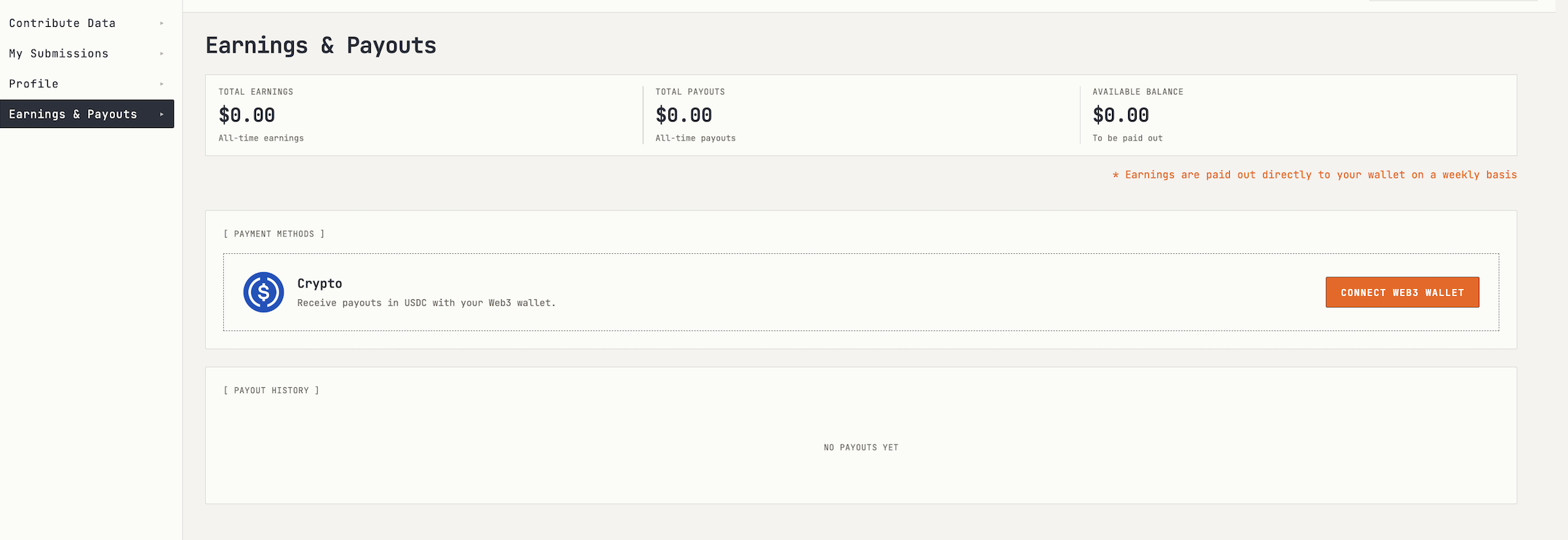
The Earnings & Payouts page shows total earnings, payouts, available balance, and payment methods.
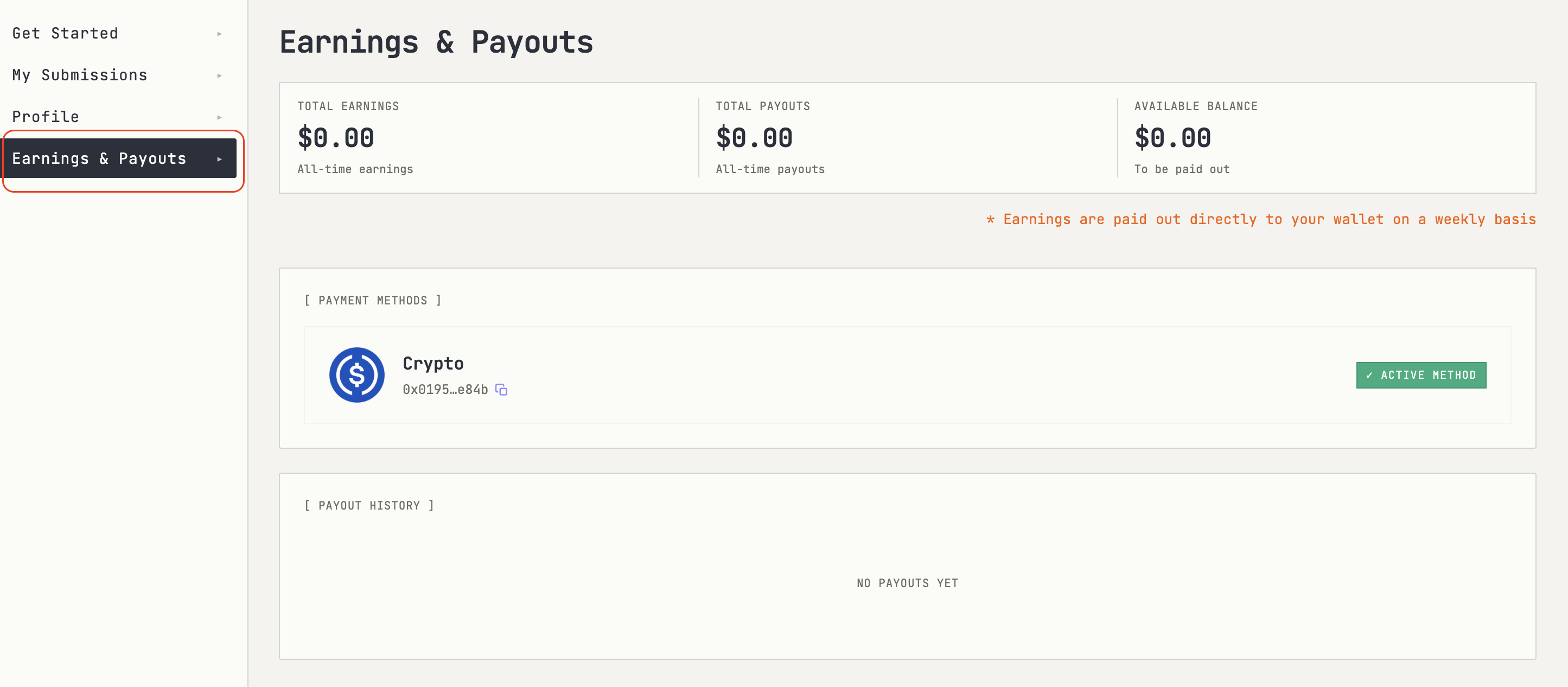
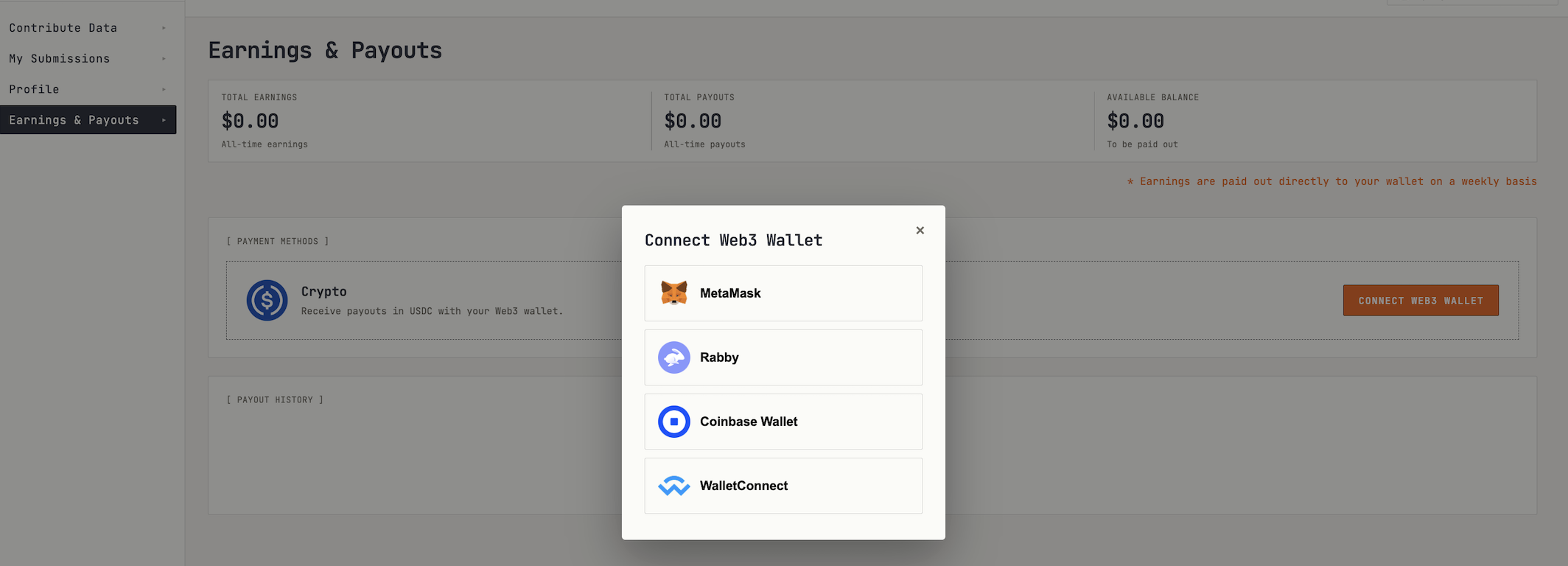
If no payout wallet is connected, click “CONNECT WEB3 WALLET” and choose a supported wallet provider and sign the message to connect.